How to Calculate Percentages in Google Sheets
Google Sheets doesn't have a special "percentage function". A percentage is just one number divided by another, displayed with the % format. Once you know the three or four basic formulas below, you can handle almost any percentage question.
Percentage of a total
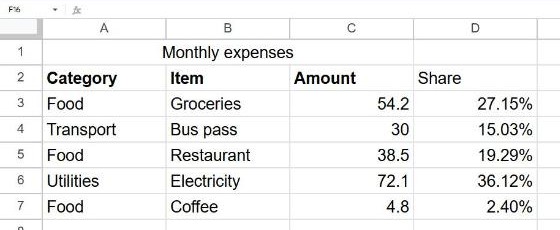
An expense list has amounts in C3:C7 (with a merged title in row 1 and headers in row 2). To see what share of the total each expense represents, type this in D3:
=C3/SUM($C$3:$C$7)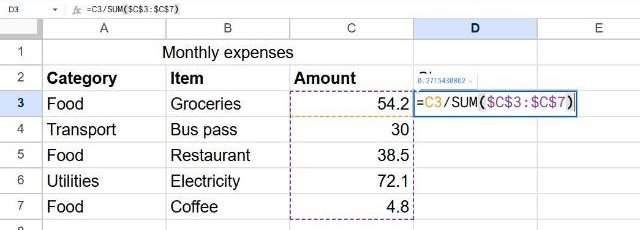
The result is a decimal like 0.33. To show it as a percentage, select the column and click the Format as percent button (%) on the toolbar, or use Format → Number → Percent.
Don't multiply by 100. The % format already does that. If you write =C2/C8*100 and then format as percent, you'll see 3314% instead of 33.14%.
Percentage change between two numbers
To see how much something grew or shrank, subtract the old value from the new one and divide by the old value:
=(B2-A2)/A2If last month (A2) was 200 and this month (B2) is 250, the result is 25%. A negative result means a decrease.
To avoid a #DIV/0! error when the old value is 0 or empty, wrap it in IFERROR:
=IFERROR((B2-A2)/A2, "")Increase or decrease a number by a percentage
| You want to… | Formula | Example (A2 = 80) |
|---|---|---|
| Add 10% | =A2*(1+10%) | 88 |
| Subtract 25% (a discount) | =A2*(1-25%) | 60 |
| Find 15% of a number | =A2*15% | 12 |
You can type percentages directly with the % sign, as above, or keep the rate in its own cell (for example B1 = 10%) and use =A2*(1+$B$1). Changing B1 then updates every row.
What percentage one number is of another
If 18 out of 24 tasks are done:
=18/24Formatted as percent, that's 75%. With cells, it's simply =A2/B2. For a checklist, you can combine it with COUNTIF, as shown in our checkbox guide.
Frequently asked questions
How do I change the number of decimals?
Use the Decrease decimal places and Increase decimal places buttons (.0 and .00) on the toolbar.
Why does my percentage show as 0%?
The value is smaller than 0.5% and rounded away. Add decimal places, or check that you divided the right way round (part ÷ total, not total ÷ part).
Can I show percentages as a bar in the cell?
Yes, with =SPARKLINE(D2, {"charttype","bar";"max",1}), which draws a small bar filled to the percentage in D2.