How to Wrap Text in Google Sheets
By default, long text in Google Sheets spills over into the next cell, or gets cut off if that cell isn't empty. Wrapping makes the text break onto several lines inside its own cell, and the row grows taller to fit it.
Wrap text from the menu
- Select the cells with long text. To wrap a whole column, click its letter.
- Go to Format → Wrapping → Wrap.
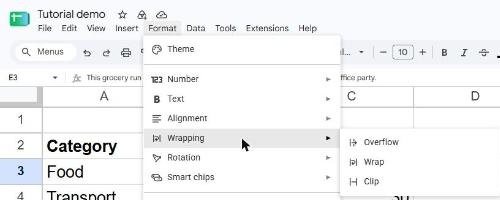
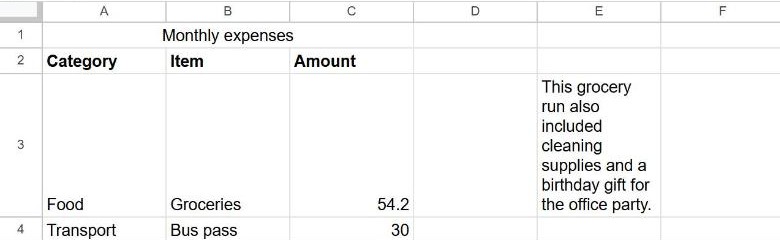
The toolbar has the same options under the Text wrapping button (an icon with a bent arrow).
Overflow, Wrap and Clip compared
| Option | What happens to long text | Good for |
|---|---|---|
| Overflow (default) | Spills into the next cells if they're empty | Titles and short notes |
| Wrap | Breaks onto new lines; the row gets taller | Descriptions, comments, addresses |
| Clip | Cut off at the cell edge; full text still visible in the formula bar | Keeping every row the same height |
Add a line break inside a cell
Wrapping decides where lines break automatically. To choose the break yourself, double-click the cell and press Ctrl + Enter (Windows) or ⌘ + Enter (Mac) where you want the new line. Alt + Enter also works on Windows.
In a formula, use CHAR(10) for a line break, for example =A2&CHAR(10)&B2. The cell must be set to Wrap for the break to show.
Fix rows that don't resize
If a row stays short after wrapping, it probably has a fixed height. Right-click the row number, choose Resize row, select Fit to data and click OK.
Frequently asked questions
Can I wrap text in the whole sheet at once?
Yes. Press Ctrl + A to select everything, then choose Format → Wrapping → Wrap.
Why is my text still overflowing?
Check that you applied Wrap to the cell that contains the text, not the empty cell next to it. The formula bar shows which cell holds the value.
Is there a shortcut for wrapping?
There's no default single-key shortcut, but you can search for it: press Alt + / (Windows) or Option + / (Mac), type "wrap" and press Enter.