How to Hide and Unhide Rows and Columns in Google Sheets
Hiding rows or columns tucks away helper data, old months or working-out that you don't need to see, without deleting anything. Formulas that use hidden cells keep working exactly as before.
Hide rows or columns
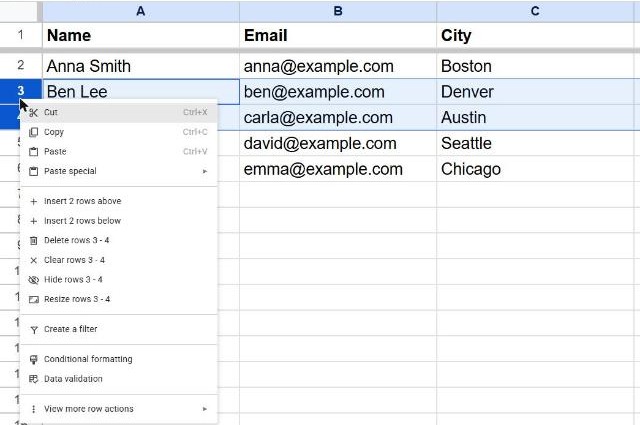
- Select the rows (click the row numbers) or columns (click the column letters) you want to hide. Hold Shift to select several in a row.
- Right-click the selection and choose Hide rows or Hide columns. The menu names the exact range, for example Hide rows 3 - 4.
Keyboard shortcuts
| Action | Windows | Mac |
|---|---|---|
| Hide rows | Ctrl + Alt + 9 | ⌘ + Option + 9 |
| Hide columns | Ctrl + Alt + 0 | ⌘ + Option + 0 |
| Unhide rows | Ctrl + Shift + 9 | ⌘ + Shift + 9 |
| Unhide columns | Ctrl + Shift + 0 | ⌘ + Shift + 0 |
Unhide rows or columns
Hidden rows leave a small pair of arrows in the row numbers where they used to be. Click the arrows and the rows come back.
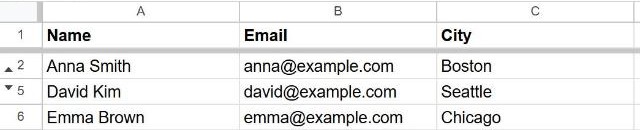
To unhide everything at once, select the whole sheet with Ctrl + A, right-click a row number and choose Unhide rows.
Group rows instead of hiding them
If you'll hide and show the same rows often, group them: select the rows, right-click and choose View more row actions → Group rows. A – button appears beside them; click it to collapse and + to expand.
Frequently asked questions
Do hidden rows count in SUM?
Yes. SUM, COUNT and AVERAGE include hidden rows. Use =SUBTOTAL(109, C2:C20) to add only the visible ones.
Can other people see hidden rows?
Anyone who can edit the sheet can unhide them. Hiding is for tidiness, not security. To stop edits, use protected ranges.
Hiding vs filtering?
Hiding is manual and fixed. A filter hides rows automatically based on their values and is easier to undo.