How to Protect Cells in Google Sheets
When you share a sheet, one wrong click can wipe out a formula or a heading. Protecting cells lets other people use the sheet while stopping them from changing the parts that matter. You can protect a single range or a whole tab.
Protect a range of cells
- Select the cells you want to lock, for example a column of formulas.
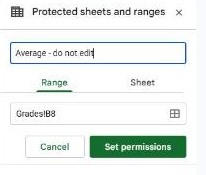
- Go to Data → Protect sheets and ranges. A panel opens on the right.
- Click Add a sheet or range, and check the range is correct (edit it if needed).
- Give it a description like "Totals – do not edit", then click Set permissions.
- Choose what happens on an edit (see the next section) and click Done.
Warning vs. block
When you click Set permissions, you get two choices:
- Show a warning when editing this range. Anyone can still edit, but they see "Are you sure?" first. Good for gentle protection against accidents.
- Restrict who can edit this range. Only the people you choose can change it. Everyone else is blocked. Use the dropdown to pick Only you or Custom to add specific people.
Protect a whole sheet
To lock an entire tab, choose Sheet instead of Range in step 3. You can add exceptions with Except certain cells, so people can fill in a few input cells while everything else stays locked.
Remove or edit protection
Go back to Data → Protect sheets and ranges, click the protection in the list, and either change its settings or click the trash icon to remove it.
Note: protection controls editing, not viewing. Anyone with access to the sheet can still see protected cells. To hide values completely, keep them in a separate sheet and limit who can open the file.
Frequently asked questions
Can I stop people changing the formatting only?
No. Protection covers all edits to the range, both values and formatting. There's no formatting-only lock.
Why can others still edit my protected range?
They probably have edit access as an owner or editor with permission. Check the range's Restrict who can edit list, and remember that the file owner can always edit.
Is this the same as freezing cells?
No. Freezing keeps rows or columns visible while scrolling; it doesn't stop edits. See how to freeze rows and columns.