How to Use COUNTIF in Google Sheets: 8 Practical Examples
COUNTIF counts how many cells in a range meet a condition: how many orders are "Paid", how many scores are above 80, how many times a name appears. It's quick to write and works for text, numbers and dates.
COUNTIF syntax
=COUNTIF(range, criterion)- range – the cells to check.
- criterion – the condition, for example
"Food",">80"or a cell reference.
Count cells with specific text
In an expense list with categories in column A, count how many purchases were Food:
=COUNTIF(A2:A7, "Food")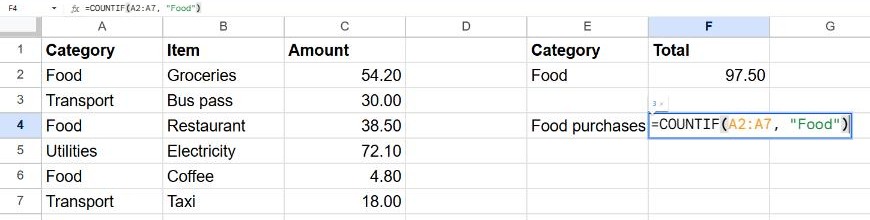
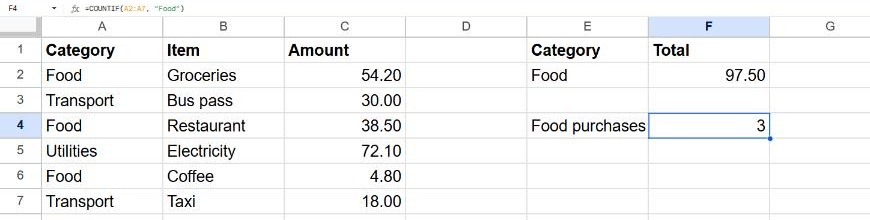
COUNTIF ignores upper and lower case: "food", "Food" and "FOOD" are all counted.
8 common COUNTIF examples
| You want to count… | Formula |
|---|---|
| Cells equal to a value in another cell | =COUNTIF(A2:A100, E2) |
| Numbers greater than 80 | =COUNTIF(B2:B100, ">80") |
| Numbers greater than the value in H1 | =COUNTIF(B2:B100, ">"&H1) |
| Cells that are not "Done" | =COUNTIF(C2:C100, "<>Done") |
| Cells that contain "apple" anywhere | =COUNTIF(A2:A100, "*apple*") |
| Cells that start with "INV-" | =COUNTIF(A2:A100, "INV-*") |
| Empty cells | =COUNTBLANK(A2:A100) |
| Non-empty cells | =COUNTA(A2:A100) |
Watch out: "<>Done" also counts empty cells. If your range includes empty rows at the bottom, limit the range to the rows with data, or use COUNTIFS with a second condition "<>" (not empty).
Several conditions: COUNTIFS
COUNTIFS takes pairs of range and condition, and counts rows where all conditions are true:
=COUNTIFS(A2:A100, "Food", C2:C100, ">20")This counts Food purchases over 20. To count rows that match either of two values, add two COUNTIFs together:
=COUNTIF(A2:A100, "Food") + COUNTIF(A2:A100, "Transport")Count checkboxes that are ticked
A ticked checkbox has the value TRUE, so:
=COUNTIF(C2:C20, TRUE)See how to add checkboxes in Google Sheets for a full to-do list example.
Frequently asked questions
Why does COUNTIF return 0 when I can see matches?
The cells probably contain extra spaces or the numbers are stored as text. Use Data → Data cleanup → Trim whitespace for the spaces, and make sure numbers are aligned to the right (real numbers) rather than the left (text).
Can COUNTIF find duplicates?
Yes. =COUNTIF($A$2:$A$100, A2)>1 returns TRUE for any value that appears more than once. Use it in conditional formatting to highlight duplicates.
What's the difference between COUNT, COUNTA and COUNTIF?
COUNT counts cells with numbers, COUNTA counts all non-empty cells, and COUNTIF counts only the cells that meet your condition.