How to Convert Text to Numbers in Google Sheets
Sometimes numbers in Google Sheets look normal but behave like text: SUM returns 0, sorting goes 1, 10, 2, and formulas show #VALUE!. This usually happens with imported or pasted data. Here's how to spot and fix it.
How to spot numbers stored as text
- They're aligned to the left of the cell (real numbers align right by default).
- The quick total in the bottom-right corner shows only a Count, not a Sum.
=ISNUMBER(A2)returns FALSE.
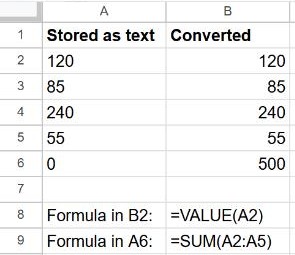
Fix 1: change the format
If the cells were formatted as Plain text, select them and choose Format → Number → Automatic (or Number). Values typed afterwards are stored as numbers. Values that are already text may need to be re-entered: copy them and paste back with Edit → Paste special → Values only.
Fix 2: the VALUE function
=VALUE(A2)VALUE turns text that looks like a number into a real number. Fill it down a helper column, then copy the results and paste them over the original as values.
Fix 3: multiply by 1
=A2*1Any maths operation forces Sheets to convert the text. It's a quick alternative to VALUE, and it works inside other formulas: =SUMPRODUCT(A2:A5*1).
Numbers with symbols, spaces or commas
VALUE fails if the text contains extra characters. Clean them first:
| Problem | Formula |
|---|---|
| Spaces, e.g. " 120 " | =VALUE(TRIM(A2)) |
| Currency symbol, e.g. "€120" | =VALUE(SUBSTITUTE(A2, "€", "")) |
| Thousands separator, e.g. "1,200" | =VALUE(SUBSTITUTE(A2, ",", "")) |
See how to remove extra spaces.
Frequently asked questions
Why does a number start with an apostrophe?
Typing '120 tells Sheets to store it as text. Remove the apostrophe by retyping the value without it.
Can decimal commas cause this?
Yes. If your data uses 12,5 but the spreadsheet locale expects 12.5, Sheets reads it as text. Change the locale in File → Settings or replace the commas.