Fix IMPORTRANGE "You don't have permissions to access that spreadsheet"
IMPORTRANGE shows #REF! for several different reasons, and the tooltip tells you which one. We tested the three that aren't about connecting sheets, using two Google accounts: one that owns a private file, and one that tries to import from it.
"You don't have permissions to access that spreadsheet"
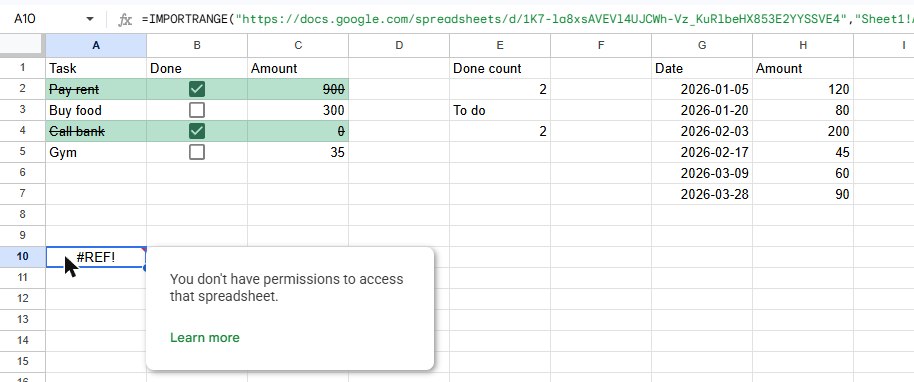
IMPORTRANGE reads the source file as you. If your Google account can't open that file, the formula can't either. In our test the source was a private sheet in another account, and the formula showed this message straight away, without the usual Allow access step.
Fix:
- Open the source URL in your browser with the same account. If you see "You need access", that's the problem.
- Ask the owner to share the file with your account (Viewer is enough), or click Request access on that page.
- Once you have access, go back to the formula. If it now says "You need to connect these sheets", click Allow access; see that guide.
Check also that you're signed in with the right account. If you use several, the file may be shared with your work account while you're in your personal one.
"Spreadsheet cannot be found"
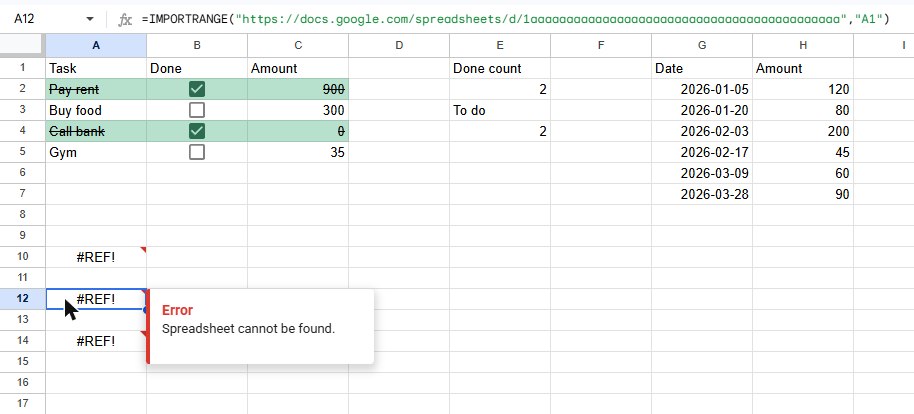
The URL or ID in the first argument doesn't point to an existing spreadsheet: a character is missing, the link was cut when it was copied, or the file was deleted.
Fix: open the source file and copy its address again from the browser bar. You can paste the full URL or just the ID, the long code between /d/ and /edit.
"It is not a valid cell/range reference"
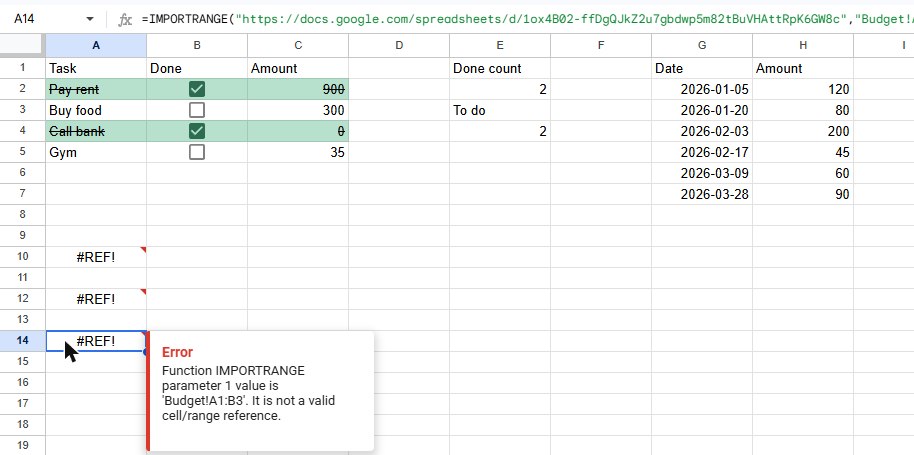
The full message is "Function IMPORTRANGE parameter 1 value is 'Budget!A1:B3'. It is not a valid cell/range reference." Don't let "parameter 1" confuse you: the problem is the range text, the second argument. Usually the tab name doesn't exist in the source file, or it's misspelled.
Fix: check the tab name at the bottom of the source file and copy it exactly. In our test, changing "Budget!A1:B3" to the real tab name, "Sheet1!A1:A3", imported the data straight away.
Frequently asked questions
Does the person I share the result with also need access to the source?
No. Once the connection is allowed, the imported data shows for everyone who can open your file. Only the person who sets up the formula needs access to the source.
Where's the basic IMPORTRANGE guide?
See how to use IMPORTRANGE. For a tab name that doesn't exist inside the same file, the error is different: "Unresolved sheet name".