Fix IMPORTRANGE "You need to connect these sheets" in Google Sheets
You write an IMPORTRANGE formula to pull data from another file, and instead of the data you get #REF!. Hovering over the cell shows:
Error You need to connect these sheets.
This isn't a mistake in your formula. It's a security step: Google Sheets won't let one file read another until someone confirms it.
The fix: click Allow access
- Click the cell with
#REF!(or hover over it). - In the box that appears, click Allow access.
- The cell shows Loading… for a moment, then the imported data.
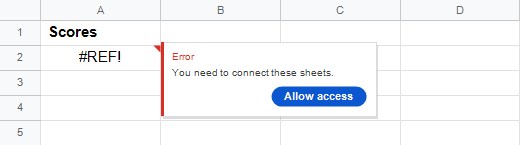
You only do this once per pair of files. After that, every IMPORTRANGE in the destination file that reads from the same source works straight away, for you and for everyone else who edits the file.
No Allow access button?
If the box shows a different message, or no button at all, it's one of these:
The formula is inside another function
With formulas like =QUERY(IMPORTRANGE(…), …) or =SUM(IMPORTRANGE(…)) the button often doesn't show. Connect the files with a plain formula first:
- In an empty cell, type only the IMPORTRANGE part, for example
=IMPORTRANGE("https://docs.google.com/spreadsheets/d/…", "Sheet1!A1"). - Click Allow access on that cell.
- Delete the helper cell. Your original formula now works.
You can't open the source file
IMPORTRANGE can only read files you have access to. If the message says you don't have permission, open the source URL in your browser: if you can't see the file, ask its owner to share it with you. Viewer access is enough.
You can't edit the destination file
Only someone who can edit the file with the formula can allow access. If you're a viewer or commenter, ask an editor to click the button, or make your own copy with File → Make a copy.
The source is an Excel file
IMPORTRANGE only reads Google Sheets files. If the source is an .xlsx file stored in Drive (you'll see an .XLSX label next to its name), open it, choose File → Save as Google Sheets and use the URL of the new copy.
You're on the mobile app
If you don't see the button in the Google Sheets app, open the file on a computer, allow access once, and it will work on your phone too.
Still #REF! after allowing access?
Hover over the cell again: the message has probably changed, and it tells you what's wrong now.
- The sheet or range isn't found: the range string must match the tab name exactly, for example
"Expenses!A1:C20". Check the spelling of the tab name in the source file. - The URL is wrong: copy it again from the address bar of the source file. You can also use just the long ID between
/d/and/edit. - The result would overwrite data: the imported range needs empty cells below and to the right. See "Array result was not expanded".
- #ERROR! instead of #REF!: both arguments must be in double quotes. See Formula parse error.
The connection can also break later: if the owner stops sharing the source file with you, the formula goes back to #REF! until you have access again.
Frequently asked questions
Do I have to allow access for every formula?
No. Access is granted per pair of files. Once the destination file is connected to a source file, all IMPORTRANGE formulas between those two files work.
Does allowing access share the source file?
No. The source file keeps exactly the same sharing settings. Only the imported range becomes visible inside the destination file.
Is it safe to click Allow access?
Anyone who can open the destination file will see the imported data, even if they don't have access to the source file. Only connect files whose data you're happy to show to the people who use the destination file.
Why does it stay on "Loading…"?
The source is large or was just edited. See the tips in how to use IMPORTRANGE.