Fix "Unresolved sheet name" in Google Sheets
A formula like ='Budget 2026'!A1 points to another tab by its name. If no tab in the file has exactly that name, Google Sheets shows #REF! and the tooltip "Unresolved sheet name 'Budget 2026'."
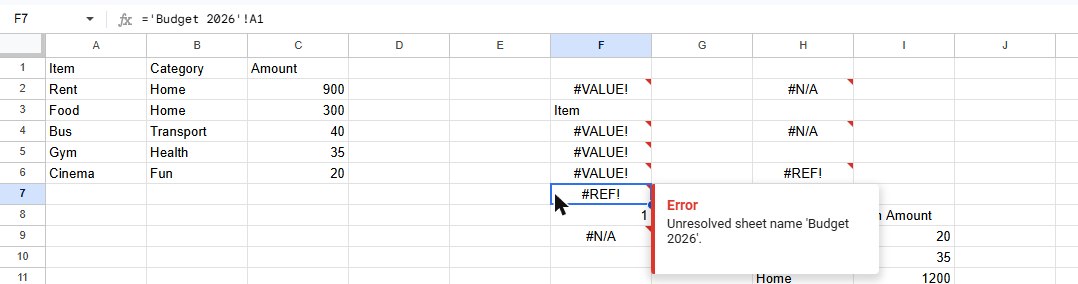
Why it happens
The name between the quotes must match a tab at the bottom of the screen character for character. The usual culprits:
- A typo or a different spelling, such as Budget2026 vs Budget 2026.
- An extra space at the start or end of the tab name. It's invisible on the tab but breaks the match.
- The formula was copied from another file where the tab existed.
- The name is built as text inside INDIRECT (see below), and the text doesn't match.
How to fix it
- Hover over the cell and read the name in the message: that's exactly what Sheets looked for.
- Double-click the tab at the bottom to see its real name, and compare.
- Fix whichever is wrong: rename the tab, or edit the name in the formula.
The easiest way to avoid typos is not to type the name at all: start the formula, click the other tab, click the cell, and press Enter. Sheets writes the reference for you, with quotes when the name has spaces, like 'Budget 2026'!A1.
INDIRECT and IMPORTRANGE
When the sheet name is inside text, for example =INDIRECT("'" & B1 & "'!A1") or =IMPORTRANGE(url, "Budget 2026!A1:C10"), Sheets can't check it as you type, and renaming a tab won't update it. Check the text in B1 or in the range string for the same typos as above.
For IMPORTRANGE problems with access rather than names, see "You need to connect these sheets".
Frequently asked questions
Is this the same as "Reference does not exist"?
Both show #REF!, but the message is different. "Reference does not exist" appears when the cells a formula used were deleted. See how to fix #REF!.
Do I need the quotes around the sheet name?
Only when the name has spaces or special characters. Sheet1!A1 works without them; 'Budget 2026'!A1 needs them.