Fix IMPORTXML Errors: "Could not fetch url", "Imported content is empty" and #REF!
IMPORTXML, IMPORTHTML and the other import functions fetch data from a web page, so most of their errors are about the page, not the formula. Hover over the cell to see which message you have. We triggered the three common ones in a new spreadsheet.
#REF!: "You must allow access to fetch data from external URLs"
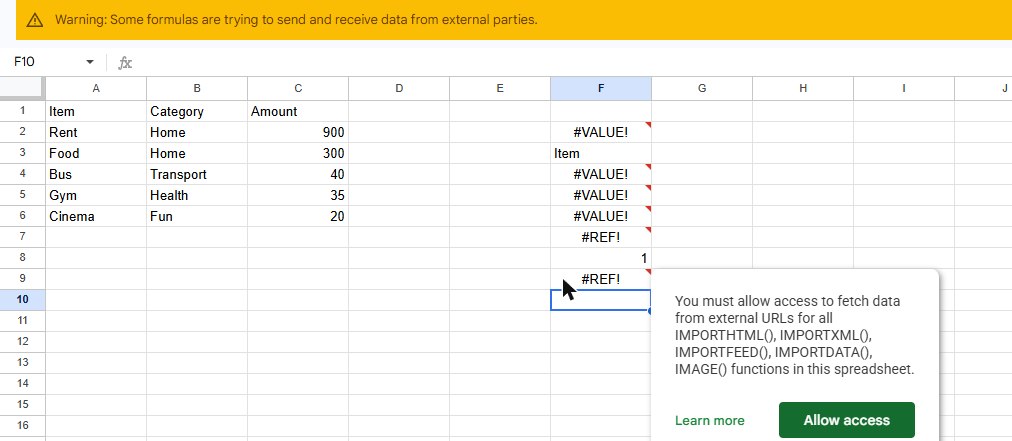
The first time a spreadsheet uses an import function, Google Sheets blocks it and shows #REF! with: "You must allow access to fetch data from external URLs for all IMPORTHTML(), IMPORTXML(), IMPORTFEED(), IMPORTDATA(), IMAGE() functions in this spreadsheet." A yellow bar also appears at the top: "Warning: Some formulas are trying to send and receive data from external parties."
Fix: click Allow access, either in the tooltip or in the yellow bar. You only do it once per spreadsheet: in our test the bar disappeared and the formula ran straight away.
#N/A: "Could not fetch url"
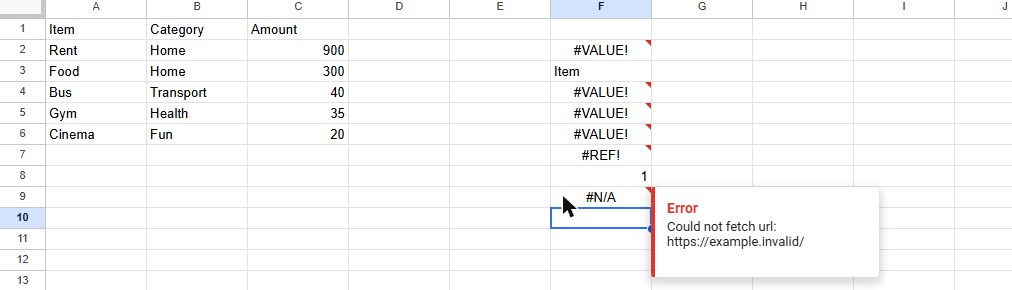
Google's servers tried to download the page and couldn't. The tooltip shows the address it tried, which is the quickest way to spot a typo. Common reasons:
- The URL is wrong: a typo, a missing
https://, or a cell reference pointing at the wrong cell. - The page needs a login, like a dashboard or anything behind a sign-in. The import runs from Google's servers, not from your browser, so it can't use your session.
- The site blocks automated requests. Some sites refuse requests that don't come from a normal browser. There's no formula fix for that; look for an official export, CSV or API instead.
Fix: paste the URL from the tooltip into a private browser window. If it doesn't open there without logging in, IMPORTXML can't read it either.
#N/A: "Imported content is empty"

//table to match.This time the page downloaded fine, but your XPath (the second argument) didn't match anything. =IMPORTXML("https://example.com/", "//table") fails because that page has no table.
Fix:
- Start with a broad XPath to confirm the page is readable, for example
"//h1"or"//a/@href". - Narrow it down step by step until you get the part you want.
- If even simple XPaths come back empty, the content is probably drawn by JavaScript after the page loads. IMPORTXML only sees the HTML the server sends, so that content isn't reachable with a formula.
For tables and lists, IMPORTHTML(url, "table", 1) is often simpler than writing an XPath.
Frequently asked questions
Is IMPORTRANGE the same?
No. IMPORTRANGE reads other Google Sheets files and has its own permission step. See "You need to connect these sheets".
How do I show a blank instead of #N/A when the import fails?
Wrap it: =IFERROR(IMPORTXML(A1, "//h1"), ""). Only do this once the formula works, or you'll hide the message that tells you what's wrong. See IFERROR.