Fix "You are trying to edit a protected cell or object" in Google Sheets
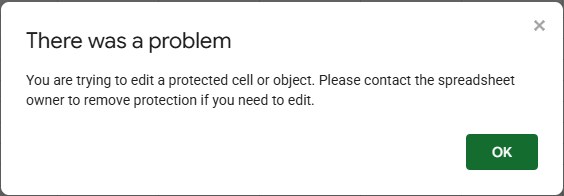
You can edit the file, but one group of cells refuses to change. Google Sheets shows this message because the owner has protected those cells and you're not on the list of people allowed to edit them. We reproduced it with two accounts: one owns the sheet, the other is an editor.
Why it happens
The owner selected those cells, went to Data → Protect sheets and ranges and chose Restrict who can edit this range. You have edit access to the file, so you can change everything else, but not that range.
In our test, the edit was simply rejected: the cell kept its old value (900), and typing in an unprotected cell next to it worked normally. Nothing you type in a protected cell is saved.
If instead the whole file says View only next to the menus, it's not a protection problem: you have viewer access and can't edit any cell. Ask the owner for edit access (see how sharing permissions work).
See which cells are protected
Go to Data → Protect sheets and ranges. As an editor, you see the same list as the owner: each protected range (for example Sheet1!A1:B4), marked View only when you can't edit it.
Any cell outside those ranges is yours to edit.
If you need to edit them
Only the owner, or someone on the range's list, can unlock it. As the message says, contact the spreadsheet owner and ask them to either:
- add you to the range, so you can edit it from now on, or
- remove the protection, if nobody needs it anymore.
To find out who the owner is, click Share (or File → Share): the owner is listed under People with access.
Until then, put your changes in unprotected cells, or leave a comment on the protected cell (Insert → Comment) so the owner sees what you need.
Owner: let someone edit a protected range
- Go to Data → Protect sheets and ranges and click the range in the list.
- Click Change permissions.
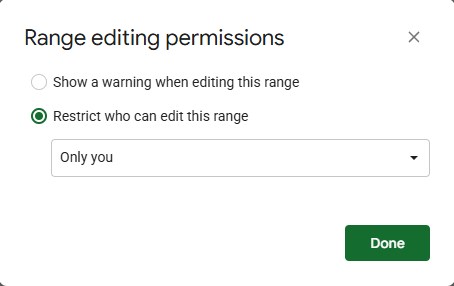
- Under Restrict who can edit this range, choose Custom and type the person's email in Add editors.
- Click Done.
To remove the protection completely, click the trash icon next to the range in the same panel. The full setup is in how to protect cells in Google Sheets.
The "Heads up!" message is different
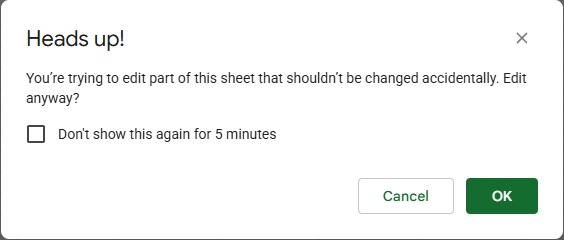
If you see "Heads up! You're trying to edit part of this sheet that shouldn't be changed accidentally. Edit anyway?", the range was protected with Show a warning when editing this range. You're allowed to edit: click OK to keep your change or Cancel to undo it. Tick Don't show this again for 5 minutes if you have several cells to change.
The warning appears for everyone, including the owner. To get rid of it, the owner can remove the protection or switch it to Restrict who can edit.
Frequently asked questions
I'm the owner. Why can't my colleague edit?
When you choose Restrict who can edit this range, the default is Only you, so every other editor is blocked, even people you shared the file with as Editor. Add them under Custom as shown above.
What does "Sorry, another user just changed this protected range" mean?
The protection settings changed while you were editing them, for example in another tab or by another person. Click OK, close the Protected sheets and ranges panel, open it again and check the current settings before changing anything.
Is a protected cell the same as a locked file?
No. Protection locks specific cells or tabs for some people; the rest of the file stays editable. A file shared as Viewer is read-only everywhere and shows View only at the top.