How to Generate Random Numbers in Google Sheets (RANDBETWEEN and RAND)
Random numbers are useful for test data, raffles, picking a winner or shuffling a list. Google Sheets has two functions for them.
RANDBETWEEN: random whole numbers
=RANDBETWEEN(1, 6)Returns a whole number between the two values, including both ends, like rolling a die.
RAND: random decimals between 0 and 1
=RAND()Returns a decimal of 0 or more and less than 1. Multiply it to get other ranges: =RAND()*100 gives a decimal between 0 and 100.
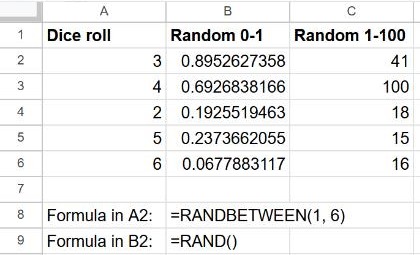
They change all the time
Both functions recalculate every time the sheet changes: typing anything in any cell gives new numbers. To keep a set of results, select them, copy, and use Edit → Paste special → Values only.
Useful recipes
| You want… | Formula |
|---|---|
| A random item from a list in A2:A20 | =INDEX(A2:A20, RANDBETWEEN(1, ROWS(A2:A20))) |
| A random date in 2026 | =RANDBETWEEN(DATE(2026,1,1), DATE(2026,12,31)) (format as date) |
| A price with two decimals | =ROUND(RAND()*50, 2) |
| Several random numbers at once | =RANDARRAY(5, 1) |
Shuffle a list
Select the range and go to Data → Randomize range (Randomise range in UK English). The rows are shuffled once and stay in their new order. To shuffle with a formula instead, use =SORT(A2:A20, RANDARRAY(ROWS(A2:A20)), TRUE).
Frequently asked questions
Can RANDBETWEEN give the same number twice?
Yes, each cell is independent. For unique numbers, shuffle a list of 1 to N instead, for example =SORT(SEQUENCE(10), RANDARRAY(10), TRUE).
Why does the number change when I open the file?
Random functions recalculate on every change and on opening. Paste the results as values to freeze them.