Sort by Date Not Working in Google Sheets? Fix dd/mm/yyyy Dates
You sort a column of dates and the order makes no sense: 14/10 before 28/09, or some dates jumping to the top. Almost always, part of the column isn't really dates. Google Sheets reads what you type according to the spreadsheet's locale, and in a US-locale sheet, day-first dates like 25/10/2026 stay as text. We reproduced it and tested the fix.
What goes wrong with dd/mm/yyyy
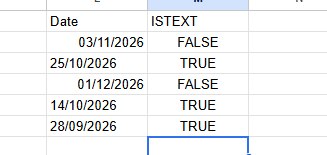
We typed five dates as day/month/year in a sheet set to United States. Two things happened, and both break sorting:
25/10/2026,14/10/2026and28/09/2026stayed as text (left-aligned), because there's no month 25, 14 or 28.03/11/2026and01/12/2026became dates, but the wrong ones: Sheets read them month-first, as 11 March and 12 January.
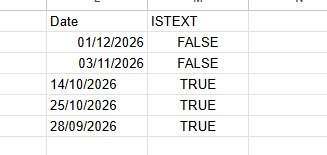
Sorting puts numbers (real dates) before text, and sorts the text alphabetically, character by character. That's why 28/09 ends up after 25/10.
Check which cells aren't real dates
- Alignment: real dates line up on the right, text on the left.
- ISTEXT: in a spare column,
=ISTEXT(A2)returns TRUE for dates stored as text. - Day and month: right-aligned dates can still be wrong if the day and month were swapped. Check one you know, for example with
=MONTH(A2).
Fix: set the locale, then re-enter the dates
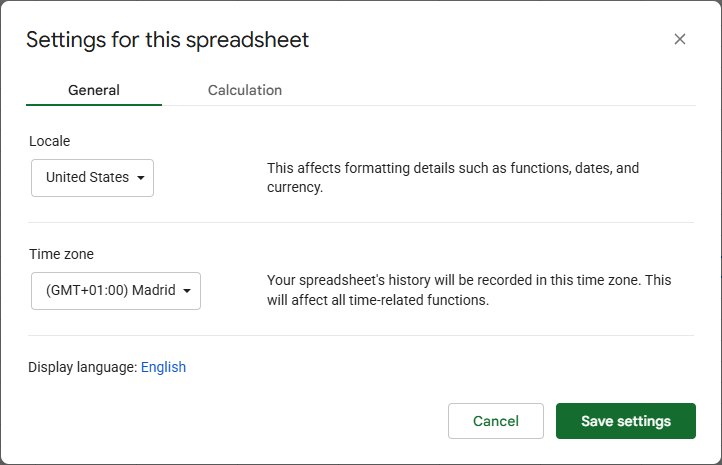
- Go to File → Settings and, under Locale, choose a country that writes dates day-first (we used United Kingdom). Click Save and reload.
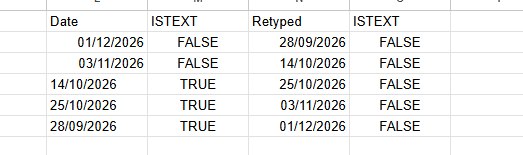
- Re-enter the dates. In our test, changing the locale did not fix the cells that were already there: the text stayed text. Retype them, or paste them again from the source.
- Sort again with Data → Sort range.
Changing the locale also changes the decimal separator and the separator between formula arguments in some countries, so do it at the start, before building formulas.
Frequently asked questions
Can I fix the text dates with a formula instead of retyping?
For dates stored as text in the form dd/mm/yyyy, =DATE(RIGHT(A2,4), MID(A2,4,2), LEFT(A2,2)) builds a real date from the pieces. It doesn't help with cells Sheets already turned into the wrong date (like 11 March), so retyping is the safer fix.
How do I show the dates as 25/10/2026 without changing the locale?
Use Format → Number → Custom date and time; it changes how real dates look, not how typed text is read. See how to change the date format.