How to Sort Data in Google Sheets (Without Messing Up Your Rows)
Sorting puts your rows in order: names A to Z, the biggest expenses first, the newest dates at the top. The key is to sort whole rows together, so a name never ends up next to someone else's number. Here are the safe ways to do it in Google Sheets.
Sort a range by one column
- Select the whole table you want to sort, including the header row. For example
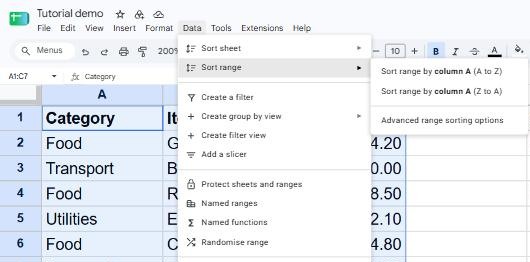
A1:C7. - Go to Data → Sort range → Advanced range sorting options.
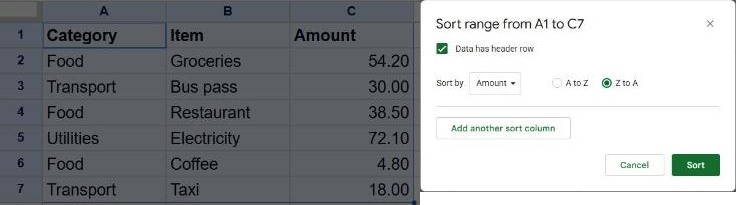
- Tick Data has header row. The header stays at the top and the Sort by list now shows your column names instead of letters.
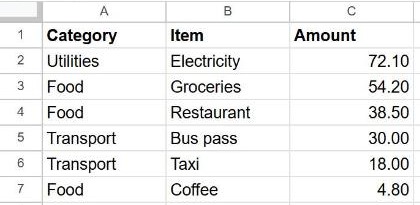
- In Sort by, choose the column to sort on. Pick A to Z (smallest first) or Z to A (largest first).
- Click Sort.
Don't select just one column. If you select only the Amount column and sort it, only that column moves, and every amount ends up next to the wrong item. Always select the full table, or use Sort sheet (below).
Sort by several columns
In the same dialog, click Add another sort column. Sheets sorts by the first column, and uses the second one only to order rows that tie on the first. For example, sort by Category A to Z, then by Amount Z to A, to see each category with its biggest expense first.
Sort the whole sheet
If your table is the only thing on the sheet, you can sort everything at once:
- Freeze the header row first with View → Freeze → 1 row (see how to freeze rows).
- Click any cell in the column you want to sort by.
- Go to Data → Sort sheet and choose Sort sheet by column (A to Z) or (Z to A).
Frozen rows are left in place, so your header stays at the top.
Keep a sorted copy with the SORT function
Sorting with the menu changes your data permanently. If you'd rather keep the original order and show a sorted version somewhere else, use a formula:
=SORT(A2:C7, 3, FALSE)The arguments are the range, the column number within that range to sort by (3 = Amount), and TRUE for ascending or FALSE for descending. The result updates automatically when the source data changes. To sort by more columns, add more pairs: =SORT(A2:C7, 1, TRUE, 3, FALSE).
Frequently asked questions
Why did my header row get sorted into the data?
"Data has header row" wasn't ticked. Press Ctrl + Z to undo, then sort again with the box ticked.
Why are numbers sorted in the wrong order (1, 10, 2…)?
They're stored as text. Select the column and choose Format → Number → Number, then sort again.
Can I undo a sort?
Yes, with Ctrl + Z right away. If you might need the original order later, add a column with 1, 2, 3… before sorting, so you can always sort back by it.