How to Strikethrough Text in Google Sheets (Shortcut and Checkbox)
Strikethrough draws a line through text, the classic way to mark a task as done without deleting it. Google Sheets gives you a shortcut, a toolbar button and a menu option, and you can even make it happen automatically.
The quickest way: keyboard shortcut
Select the cells and press:
- Windows / ChromeOS: Alt + Shift + 5
- Mac: ⌘ + Shift + X
Press it again to remove the line.
Using the menu or toolbar
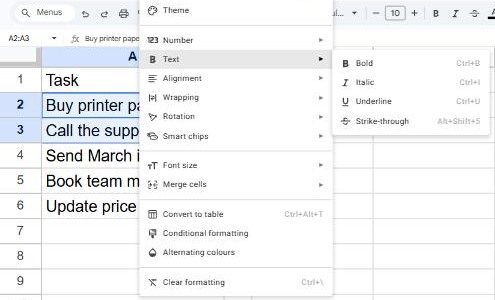
Go to Format → Text → Strikethrough (spelled Strike-through if your account uses UK English), or click the S with a line through it on the toolbar, next to Bold and Italic.
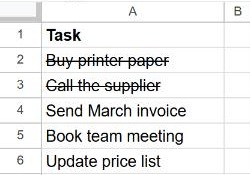
Cross out a task automatically with a checkbox
If each task has a checkbox in column B, conditional formatting can strike it through as soon as the box is ticked:
- Select the task cells, for example A2:A20.
- Go to Format → Conditional formatting.
- Under Format cells if… choose Custom formula is and enter
=$B2=TRUE. - In Formatting style, click the strikethrough button (and pick a grey text color if you like), then click Done.
Now ticking a box crosses out its task, and unticking it brings the text back. More on custom rules in conditional formatting.
Frequently asked questions
Can I strike through only part of the text in a cell?
Yes. Double-click the cell, select the words you want, and use the shortcut or toolbar button.
Does strikethrough change the value?
No. It's only formatting, so formulas still see the text or number as normal.
How do I remove all formatting at once?
Select the cells and press Ctrl + \, or use Format → Clear formatting.