Can't Scroll Right or Down in Google Sheets? Fix Frozen Columns
You drag the scroll bar or spin the mouse wheel, and the sheet doesn't move: the same columns (or rows) stay on screen. The usual cause is frozen columns or rows that are wider (or taller) than your window. Frozen panes never scroll, so if they fill the screen, there's nothing left that can move. We reproduced it and tested the fix.
Check for frozen columns or rows
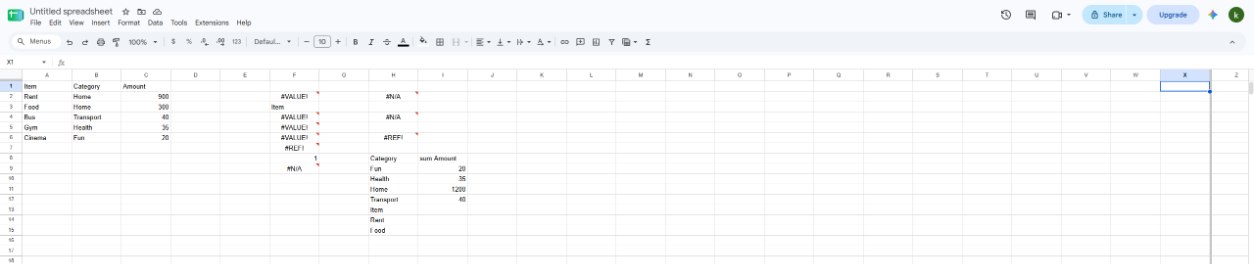
Look for a thick grey line between two column letters or two row numbers. Everything to the left of (or above) that line is frozen. In our test we froze columns A to X on a normal laptop screen: scrolling right left the screen exactly as it was, because the frozen block covered almost the whole width.
It's easy to do by accident: View → Freeze → Up to column X freezes up to whatever cell is selected, so if the cursor is far to the right, you freeze a huge block. Dragging the thick grey line too far does the same.
Unfreeze them
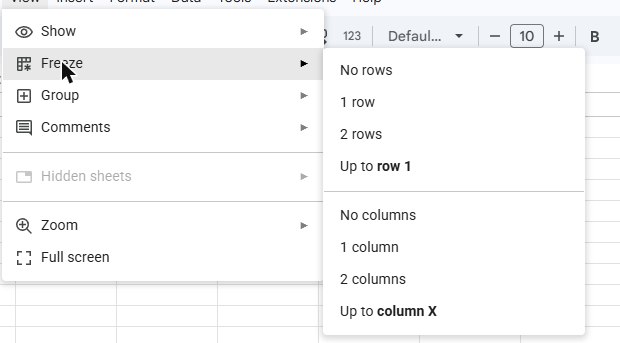
- Go to View → Freeze.
- Choose No columns if you can't scroll right, or No rows if you can't scroll down.
- Freeze again only what you need, usually 1 row for headers or 1 column for names.
After choosing No columns, scrolling right worked again straight away in our test. More on freezing in how to freeze rows and columns.
Other reasons you can't scroll
- On a phone, the same frozen block takes up far more of the small screen. If it scrolls on your computer but not on your phone, freeze fewer columns.
- Hidden rows or columns make the sheet jump past them. Look for small arrows in the row numbers or column letters and click them to unhide; see how to hide and unhide rows and columns.
- The sheet really ends there. If you can't scroll past the last row, add more rows: see how to insert multiple rows.
Frequently asked questions
Does unfreezing delete anything?
No. Freezing only changes what stays on screen while you scroll. Your data and formatting don't change.
Does freezing affect other people?
Yes, frozen rows and columns are saved with the sheet, so everyone who opens it sees them. Keep the frozen area small so the sheet works on smaller screens too.