How to Insert Multiple Rows in Google Sheets at Once
Inserting rows one at a time is slow. Google Sheets inserts as many rows as you have selected, so the trick is simply to select the right number first.
Insert several rows with right-click
- Click a row number, then Shift-click another row number to select as many rows as you want to add. For 3 new rows, select 3 rows.
- Right-click the selection.
- Choose Insert 3 rows above or Insert 3 rows below. The number in the menu matches your selection.
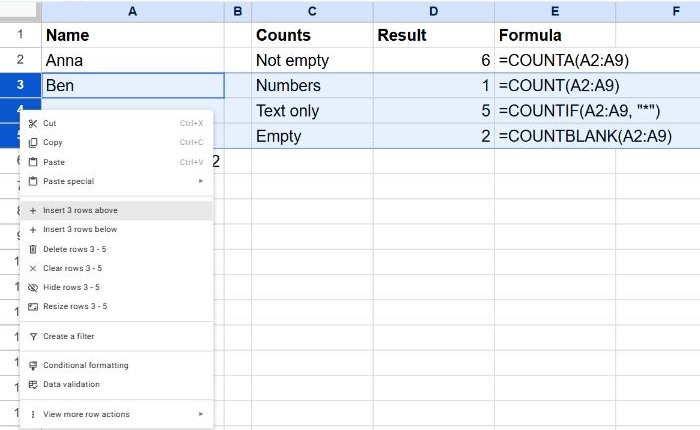
The rows you selected aren't changed; the new empty rows are added next to them. Formulas that refer to ranges around them adjust automatically.
Use the Insert menu
With the rows selected, go to Insert → Rows and choose Insert 3 rows above or below. It works exactly like the right-click menu.
Insert multiple columns
The same method works sideways: select several column letters, right-click and choose Insert 3 columns left or right.
Add many rows at the bottom
A new sheet has 1,000 rows. To add more, scroll to the very bottom. Below the last row there's an Add button with a box for the number of rows: type the number, for example 500, and click Add.
Frequently asked questions
How do I insert a row between every existing row?
There's no built-in option. A common workaround: number the rows 1, 2, 3… in a helper column, copy those numbers below the data, then sort by the helper column so each empty row lands between two data rows.
Why can't I insert rows?
The range may be protected, or you may only have view or comment access to the file.
How do I delete several rows at once?
Select them the same way, right-click and choose Delete rows. To remove only empty rows, see how to remove blank rows.