Fix "You can't sort a range containing vertical merges" in Google Sheets
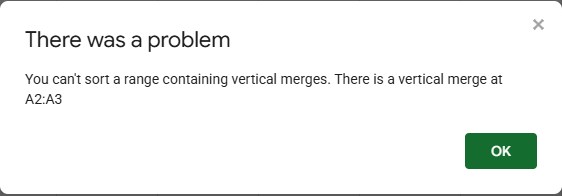
You select your data, choose Data → Sort range, and instead of sorting, Google Sheets shows:
There was a problem. You can't sort a range containing vertical merges. There is a vertical merge at A2:A3
Why it happens
Sorting moves each row on its own. A vertical merge joins cells from two or more rows into one, for example "Food" spread over rows 2 and 3 so the category is written only once. Sheets can't move row 2 and row 3 to different places when they share a cell, so it refuses to sort.
Horizontal merges are not a problem. A cell merged across columns B and C of a single row belongs to that row only, and the row moves as one block when you sort. That's why sorting works in some sheets with merged cells and not in others.
Fix: unmerge and fill in the blanks
- Select the range from the message (A2:A3 here), or the whole table if there are several merges. To find them all at once, select the whole sheet with Ctrl+A.
- Go to Format → Merge cells → Unmerge.
- Fill in the cells that are now empty (see below), then sort again.
Don't skip step 3. When you unmerge, the value goes back to the top cell only, and the others are left empty. If you sort straight away, those rows lose their category: here, Restaurant was in the "Food" group but ends up at the bottom with an empty category.
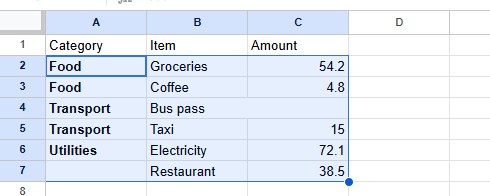
With a few rows, just type the missing values. With many, let a formula do it:
- In an empty column, say D, type
=A2in D2. - In D3, type
=IF(A3="", D2, A3)and copy it down to the last row. Each empty cell takes the value from the row above. - Copy column D, click A2 and paste with Ctrl+Shift+V (values only).
- Delete column D.
Now every row has its own category, and you can sort and filter freely. If you liked how the merged version looked, keep the repeated values and use alternating colors or conditional formatting to make groups easy to see.
If the merge is a title above the table
Sometimes the merged cell isn't in your data at all: it's a title or a group header above it. Then you don't need to unmerge anything. Sort only the data rows:
- Select the data rows, from the first data row to the last, across all the table's columns. Typing the range in the Name box (left of the formula bar), such as
A4:F50, is the most reliable way. - Choose Data → Sort range and pick the column.
Select every column. If you sort only some of the columns, those columns are reordered and the others aren't, and your rows get mixed up. Press Ctrl+Z straight away if that happens.
The same problem with filters
Creating a filter on a range with vertical merges gives a similar message:
There was a problem. You can't create a filter over a header containing vertical merges.

The fix is the same: unmerge and fill in the blanks, or start the filter range below the merged title.
Frequently asked questions
Is this the same as "All merged cells need to be the same size"?
That's the Excel version of the problem. Google Sheets shows "You can't sort a range containing vertical merges" instead. The cause and the fix are the same in both: unmerge the cells inside the range you're sorting.
Does unmerging delete my data?
No. Unmerging keeps the value that's visible. But data can be lost when you merge: Sheets keeps only the top-left value and deletes the rest, after a warning. See how to merge cells safely.
Can I sort with a formula instead?
Yes. =SORT(A2:C20, 1, TRUE) shows a sorted copy somewhere else without touching the original. It still sees the hidden cells of a vertical merge as empty, though, so fill them in first.
How do I find all the merged cells in a sheet?
There's no list of them. The error message tells you the first one; to get rid of all of them at once, select the whole sheet and choose Format → Merge cells → Unmerge.