How to Merge Cells in Google Sheets (and When Not To)
Merging combines several cells into one big cell. It's the usual way to make a title stretch across the top of a table or to label a group of columns. It's also easy to overuse, so this guide covers both how to merge and when it's better not to.
Merge cells from the menu
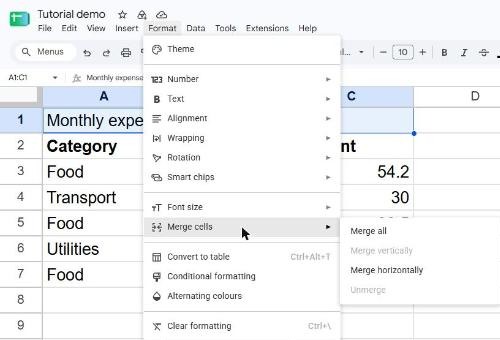
- Select the cells you want to combine, for example
A1:C1. - Go to Format → Merge cells and choose one of the options:
- Merge all – turns the whole selection into one cell.
- Merge horizontally – merges each row of the selection separately.
- Merge vertically – merges each column of the selection separately.
You'll find the same options on the toolbar: the Merge cells button and the small arrow next to it.
Merging keeps only one value
If more than one of the selected cells contains data, Sheets warns you that only the top-left value will be kept. Everything else is deleted when you confirm. Copy the other values somewhere safe first, or combine them into one cell with a formula such as =A2&" "&B2.
Unmerge cells
Select the merged cell and go to Format → Merge cells → Unmerge. The value goes back into the top-left cell; the others stay empty.
When you shouldn't merge
- Inside a data table. Merged cells get in the way of sorting, filtering, copying and pasting, and formulas that expect one value per row.
- To "group" rows with the same value. Repeat the value on every row instead. Your data stays sortable, and you can hide the repetition visually with a white text color if you want.
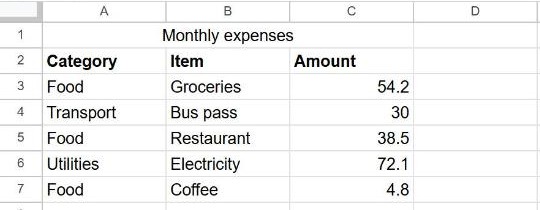
- Just to center a title. A merged title row above the table is fine. Just leave at least one empty row between the title and the headers, so the data below stays a clean table.
Rule of thumb: merge for presentation (titles, report headers), never for the data itself.
Frequently asked questions
Why is "Merge cells" greyed out?
You've selected only one cell, or the sheet is protected. Select at least two cells, and check Data → Protect sheets and ranges if it's still unavailable.
How do I find all merged cells in a sheet?
Select the whole sheet with Ctrl + A and choose Format → Merge cells → Unmerge. This unmerges everything at once; there's no built-in way to list them.
Can I merge cells without losing text?
Not directly. Combine the text first with =A1&" "&B1 or =TEXTJOIN(" ", TRUE, A1:C1), paste the result as values, then merge.