SUM Not Working in Google Sheets? Why It Returns 0 and How to Fix It
Your column clearly has numbers in it, yet =SUM(B2:B4) returns 0 or a total that's too small. Nine times out of ten, the numbers are stored as text, and SUM skips text without any warning. Here's how to confirm it and fix it, tested in a real sheet.
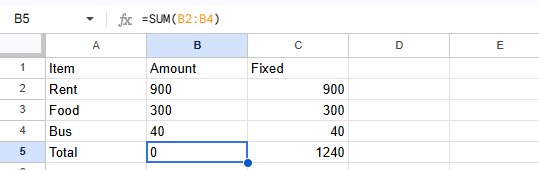
Check: are the numbers stored as text?
- Look at the alignment. By default, numbers line up on the right and text on the left. In the screenshot, column B is left-aligned: that's text.
- Ask Sheets. In an empty cell, type
=ISTEXT(B2). In our test it returned TRUE for 900. - Select the column and look at the bottom-right corner. If you see Count but no Sum, the values are text.
Numbers usually become text when they're pasted from a website, a PDF or another program, when they're imported from CSV, or when the column was formatted as Format → Number → Plain text before typing.
Fix numbers stored as text
Fix 1: VALUE in a helper column
Convert each value with VALUE, then sum the new column:
=VALUE(B2)That's column C in the screenshot: 900 + 300 + 40 = 1240.
Fix 2: one formula, no helper column
=SUMPRODUCT(VALUE(B2:B4))In our test this added up a column of text numbers correctly in a single cell. It fails with #VALUE! if the range contains real words, so use it on columns that only hold numbers.
Fix 3: convert the column for good
Set the column to Format → Number → Automatic, then put the numbers back as real numbers: retype them, or copy the results of Fix 1 and paste them over the column with Paste special → Values only. All the methods, step by step, are in how to convert text to numbers.
Other reasons SUM looks wrong
- The cell shows the formula instead of the total. There's a space or an apostrophe before the
=, or Show formulas is on. See formula showing instead of the result. - New rows aren't in the range.
=SUM(B2:B4)ignores row 5. Use a whole-column range like=SUM(B2:B); see how to sum a column. - The total is an error. If one cell in the range has an error, SUM shows the same error. Fix that cell first: #VALUE!, #REF!, #N/A.
Frequently asked questions
Why does SUM ignore text without an error?
By design: SUM adds the numbers in a range and skips anything else, so a header or a note in the column doesn't break the total. The downside is that numbers saved as text are skipped silently too.
Does the plain text format turn formulas into text too?
Not in Google Sheets. In our test, typing =SUM(...) into a Plain text cell still calculated (Excel behaves differently). Only the values you type as numbers are kept as text.