Fix "Convert to table" errors in Google Sheets
Format → Convert to table (Ctrl+Alt+T) turns a range into a Google Sheets table with a name, a header row and filter buttons. When something in the range gets in the way, Sheets refuses with one of these messages, or doesn't let you click the option at all. Find yours below.
"You can't insert a table over a merged range"
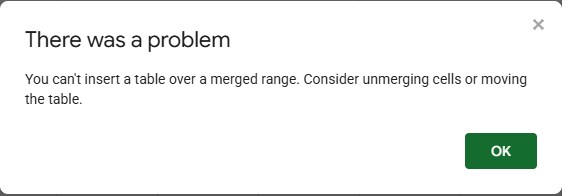
Every row of a table needs its own cells, so merged cells in the selection block the conversion.
Fix:
- Select the range and choose Format → Merge cells → Unmerge.
- Fill in the cells that unmerging leaves empty. Only the top cell keeps the value, so a category that covered two rows is now missing from the second one.
- Choose Format → Convert to table again.
If the merged cell is a title above your data, don't unmerge it: select only the header row and the data below it, and convert that. To find all merged cells at once, see how to merge and unmerge cells.
"Formulas are not supported in a table header row"

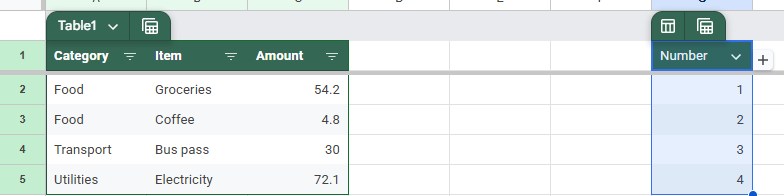
=SEQUENCE(4), not a column name.A table always uses the first row of your selection as its header, and header cells must be plain text. If that row contains a formula, even one that spills a list of results like SEQUENCE, UNIQUE or FILTER, Sheets stops.
Fix: type a column name in the row above the formula and include that row in the selection. Here, typing "Number" in G1 and converting G1:G5 worked straight away, and the formula's results became the table's data:
If the header names themselves come from a formula, copy them and paste as values (Ctrl+Shift+V) before converting.
Convert to table is greyed out
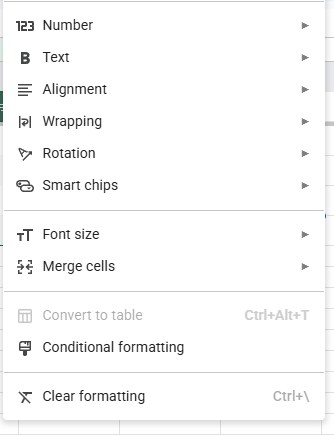
There's no message in this case: the option is simply unavailable. The usual reasons:
- Your selection touches a table that already exists. A cell can belong to only one table. Select a range that doesn't overlap any table. You can tell a table by its name tab (Table1) above the header.
- You can only view or comment on the file. Converting changes the sheet, so you need edit access. See how sharing permissions work.
The alternating colors error
If the range has alternating colors without a header, you get a different message: "You cannot convert an alternating color range without a header format into a table." That one has its own guide: Fix "You cannot convert an alternating color range".
Frequently asked questions
Can I convert a range that already has a filter?
Yes. In our test, a range with a normal filter converted without any error, and the table's own filter buttons replaced the old filter.
Do I lose my data when I convert to a table?
No. Converting only adds the table features: a name, a header row with filter buttons, column types and its own colors. Press Ctrl+Z right after if you change your mind.
Why can't I sort my data either?
Merged cells also block sorting. See "You can't sort a range containing vertical merges".