How to Count Cells with Text in Google Sheets (COUNTA, COUNTIF, COUNTBLANK)
"How many cells are filled in?" sounds simple, but Google Sheets has several counting functions and each one counts something slightly different. Here's which one to use.
The four counting functions
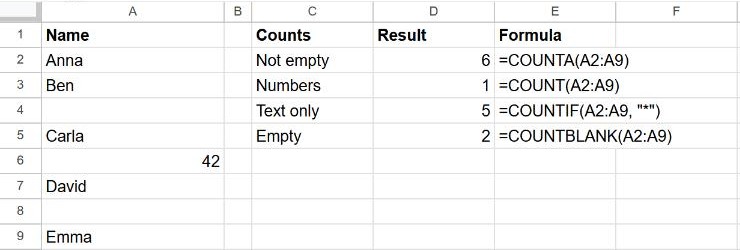
| Function | Counts | Result above |
|---|---|---|
=COUNTA(A2:A9) | Every cell that isn't empty: text, numbers, dates | 6 |
=COUNT(A2:A9) | Only numbers (and dates) | 1 |
=COUNTIF(A2:A9, "*") | Only text | 5 |
=COUNTBLANK(A2:A9) | Only empty cells | 2 |
The asterisk * in COUNTIF is a wildcard meaning "any text", so it skips numbers and empty cells.
Count cells that contain a specific word
=COUNTIF(A2:A100, "*invoice*")Put asterisks on both sides to count cells that contain the word anywhere. Without them, COUNTIF only counts exact matches. It isn't case-sensitive. See how to use COUNTIF for more patterns.
Count with several conditions
Use COUNTIFS, for example text in column A and "Paid" in column B:
=COUNTIFS(A2:A100, "*", B2:B100, "Paid")More in SUMIFS and COUNTIFS.
Count unique values
=COUNTUNIQUE(A2:A100)This counts each different value once, ignoring empty cells.
Frequently asked questions
Why does COUNTA count cells that look empty?
The cell probably contains a space, or a formula that returns an empty text (""). COUNTA counts both. Delete the stray spaces, or use =COUNTIF(A2:A9, "?*"), which only counts cells with at least one character.
Can I count cells by color?
Not with a built-in function. Filter the column by color (Data → Create a filter → Filter by colour) and look at the count in the bottom-right corner of the screen.