How to Use Data Validation in Google Sheets (Restrict Input)
Data validation controls what people can type into a cell. You can allow only scores from 0 to 100, only dates, only email addresses, or anything a formula can check. It's the best way to keep shared sheets clean.
Add a validation rule
- Select the cells to protect, for example B2:B5.
- Go to Data → Data validation and click Add rule.
- Open the Criteria list and choose a rule. Sheets suggests a Drop-down by default; change it to what you need.
- Fill in the values, for example Is between 0 and 100.
- Click Done.
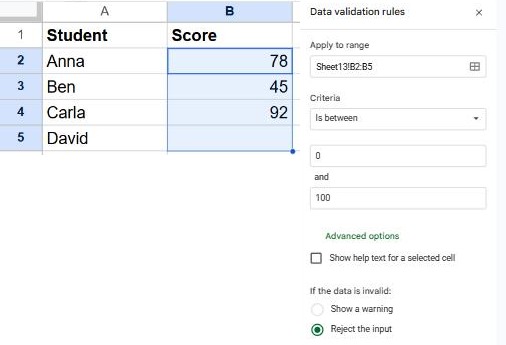
Available criteria
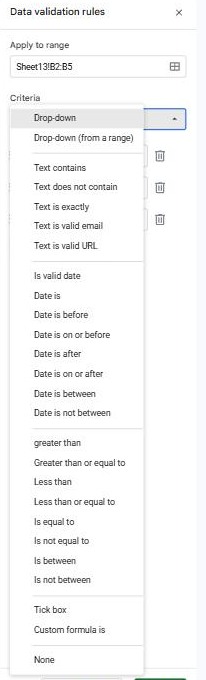
| Group | Examples |
|---|---|
| Drop-down | A fixed list, or items from a range. See drop-down lists. |
| Text | Text contains, Text is exactly, Text is valid email, Text is valid URL |
| Dates | Is valid date, Date is before / after / between |
| Numbers | Greater than, Less than, Is between, Is equal to |
| Other | Tick box, Custom formula is |
Warning or reject?
Click Advanced options to choose what happens when someone enters something invalid:
- Show a warning (default): the value is kept but the cell gets a red triangle.
- Reject the input: the value is refused and Sheets shows an error.
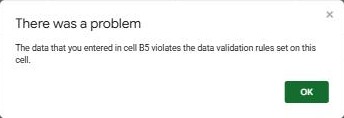
Tick Show help text for a selected cell to tell people what's allowed before they type.
Custom formula examples
| Allow only… | Custom formula (for a range starting at A2) |
|---|---|
| Values not already used in the column | =COUNTIF($A$2:$A, A2)=1 |
| Weekdays only | =WEEKDAY(A2, 2)<6 |
| Text up to 20 characters | =LEN(A2)<=20 |
Frequently asked questions
Does validation check values that were already there?
Existing invalid values are flagged with a red triangle but not removed.
Can people get around it by pasting?
Pasted values are checked too, but anyone with edit access can delete the rule. To stop that, also protect the range.