How to Fix the #DIV/0! Error in Google Sheets
#DIV/0! means a formula tried to divide by zero, or by an empty cell, which Sheets treats as zero. It usually shows up in averages, rates and "per unit" columns when one row has no data yet.
What the error looks like
Here the formula in column D is =B3/C3, revenue divided by orders. February had 0 orders, so the division can't be done. Hover over the cell and Sheets explains why:

Fix 1: check the divisor with IF (recommended)
Only divide when the bottom number isn't zero, and show a blank otherwise:
=IF(C2=0, "", B2/C2)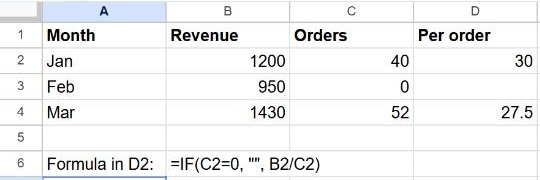
Because an empty cell also counts as zero, this formula handles blank rows too. Swap "" for 0 or "No orders" if you'd rather show something.
Fix 2: IFERROR
=IFERROR(B2/C2, "")Shorter, but it hides every error, not just division by zero. If a cell contains text by mistake, you'll get a quiet blank instead of a #VALUE! error that would have warned you. Use it when you're sure the only possible problem is a zero.
#DIV/0! in AVERAGE
=AVERAGE(B2:B10) returns #DIV/0! when the range has no numbers at all, because it divides the total by a count of zero. The same happens with AVERAGEIF when nothing matches. Wrap it the same way:
=IFERROR(AVERAGEIF(A2:A10, "Food", B2:B10), 0)More in how to use AVERAGE.
Frequently asked questions
Why does it happen when the cell isn't zero?
The divisor is probably empty, or it's a formula returning "", which also counts as zero. Check the cell the formula divides by, not the one it's in.
Should I show 0 or a blank?
A blank is usually better: a 0 can drag down averages and charts as if it were real data.
How do I find all #DIV/0! errors?
To count them, use =SUMPRODUCT(--ISERROR(D2:D100)). To see them, add a filter (Data → Create a filter) and pick only #DIV/0! under Filter by values. See how to filter data.