Fix QUERY Errors in Google Sheets: "Unable to parse query string"
When QUERY can't understand its second argument, the query string, the cell shows #VALUE! and the tooltip starts with "Unable to parse query string for Function QUERY parameter 2". The part after the colon tells you exactly what's wrong. We triggered each one on a small expense table (Item, Category, Amount in A1:C6).
NO_COLUMN: D
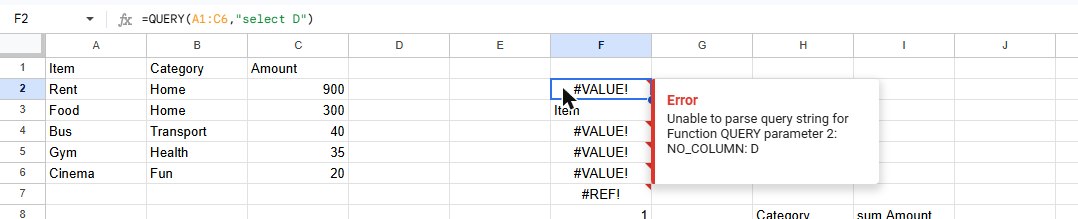
The query mentions a column that isn't inside the range in the first argument. =QUERY(A1:C6, "select D") fails because the range stops at column C.
Fix: either use a column that exists in the range, or widen the range so it includes the column you need, for example A1:D6. Column letters in the query refer to the sheet's columns, so they must fall inside the range.
NO_COLUMN: Home (text without quotes)
=QUERY(A1:C6, "select A where B = Home") gives "NO_COLUMN: Home". Without quotes, QUERY reads Home as the name of a column, and there's no column called Home.
Fix: put text values in single quotes inside the query:
=QUERY(A1:C6, "select A where B = 'Home'")In our test this returned the header Item plus Rent and Food, the two rows in the Home category. Numbers don't need quotes: where C > 100 works as it is.
ADD_COL_TO_GROUP_BY_OR_AGG: B
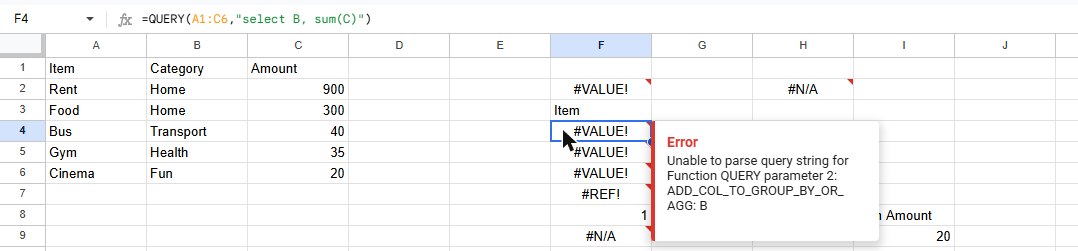
group by.You mixed a normal column (B) with a total (sum(C)). QUERY doesn't know how to combine them: one row per category, or one row in total?
Fix: add every non-total column to a group by clause:
=QUERY(A1:C6, "select B, sum(C) group by B")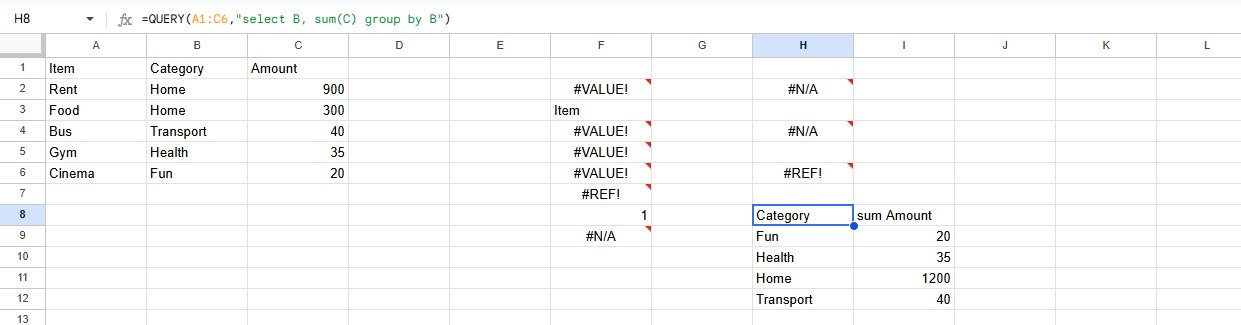
group by B, QUERY returns one total per category.If you only want one grand total, remove the normal column instead: select sum(C).
PARSE_ERROR: Encountered …
A typo in a keyword gives a long message. =QUERY(A1:C6, "selec A") shows "PARSE_ERROR: Encountered " <ID> "selec "" at line 1, column 1. Was expecting one of: <EOF> "select" … "where" … "group" …".
Fix: look at the word after Encountered and the position (line 1, column 1): that's where QUERY got lost. Check the spelling of the keywords and their order: select, where, group by, pivot, order by, limit, offset, label, format. A missing comma between columns usually ends in a PARSE_ERROR too.
"Query completed with an empty output"

This one isn't a mistake in the query: it ran fine but no row matched. It shows #N/A instead of #VALUE!.
Interesting detail from our test: with the header row included (A1:C6), the same query returned just the header, Item, and no error. The #N/A only appeared with the range starting at row 2 (A2:C6).
Fix: check the condition (a typo in a category name gives zero matches), or show a friendly message when nothing matches:
=IFERROR(QUERY(A2:C6, "select A where C > 5000"), "No results")Keep in mind that IFERROR also hides real mistakes, so add it only after the query works.
Frequently asked questions
Why does QUERY show #VALUE! and not #ERROR!?
#ERROR! means the formula itself is broken, for example a missing quote or bracket; see Formula parse error. #VALUE! means the formula is fine but the text inside the quotes isn't a valid query.
Are QUERY keywords case-sensitive?
No. select and SELECT both work. Text values in quotes are compared exactly, though: 'home' won't match Home.
Where can I learn the QUERY basics?
See how to use the QUERY function for select, where, order by and group by step by step.