How to Remove Blank Rows in Google Sheets
Imported data, pasted lists and old deletions leave gaps in a table. Blank rows break filters, charts and sorting, and deleting them one by one is slow. Here are three quick ways to get rid of them all.
Method 1: Sort the blanks to the bottom
Sorting always puts empty rows at the end, which is the fastest fix when row order doesn't matter.
- Select the table, including the header.
- Go to Data → Sort range → Advanced range sorting options, tick Data has header row, pick a column and click Sort.
The blank rows move below your data, where they no longer get in the way. See how to sort data for more options.
Method 2: Filter the blanks and delete them
This keeps your original order.
- Select the table and go to Data → Create a filter.
- Open the filter on a column that is always filled in real rows, for example Name.
- Click Clear, tick only (Blanks), and click OK. Now only the empty rows are visible.
- Select those rows by their row numbers, right-click and choose Delete selected rows.
- Go to Data → Remove filter. Your data is back, without the gaps.
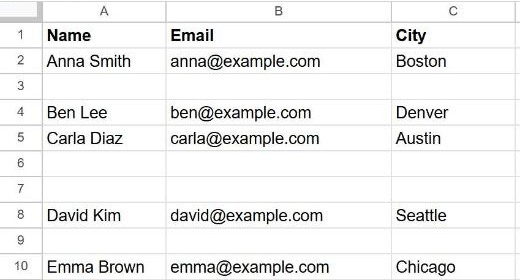
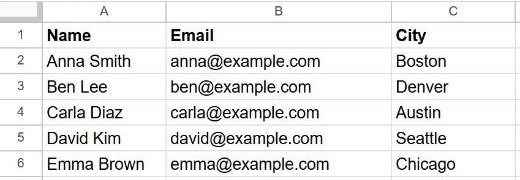
Method 3: Build a clean copy with FILTER
To leave the original untouched and get a gap-free version elsewhere:
=FILTER(A2:C, A2:A<>"")This returns only the rows where column A isn't empty, and updates as the source changes. See how to filter data for more conditions.
Rows that look empty but aren't: a cell with just a space isn't blank. If a row won't disappear, run Data → Data cleanup → Trim whitespace first.
Frequently asked questions
Will deleting blank rows break my formulas?
Formulas that refer to a range adjust automatically when rows are deleted. Formulas that pointed at a deleted row show #REF!, so check any that referenced the empty rows directly.
How do I delete blank columns?
The same way, sideways: select the empty columns by their letters, right-click and choose Delete columns.
Can I delete all rows below my data?
Yes. Click the first empty row number, press Ctrl + Shift + ↓ to select to the end, right-click and choose Delete rows.