Google Sheets Tab Missing? How to Unhide Sheets and Find Tabs
A tab you know exists isn't at the bottom of the screen anymore. The most common reason is that it was hidden, by you or by someone else who edits the file. Hidden tabs keep all their data and formulas; they're just not shown. We hid one in a test file and brought it back.

Unhide a tab
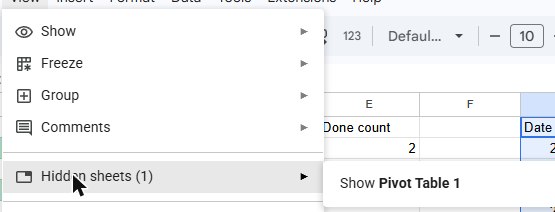
- Go to View → Hidden sheets. The number in brackets tells you how many tabs are hidden. If the option is greyed out, no tab is hidden.
- Click Show next to the tab you want back.

Find a tab in a long list
If the file has many tabs, the one you want may simply be off-screen. Click the All sheets button (the ☰ icon to the left of the tabs) to see the full list and jump to any tab.
Hide a tab on purpose
Right-click the tab at the bottom (or click its small arrow) and choose Hide sheet. A file always needs at least one visible tab, so you can't hide them all.
Hiding isn't protection. Anyone who can edit the file can unhide the tab from the View menu. To stop people changing a tab, protect it instead: see how to protect cells and sheets.
Frequently asked questions
Do formulas still work with a hidden tab?
Yes. Hiding only changes what you see. Formulas that use the hidden tab keep calculating. If a formula shows "Unresolved sheet name", the tab was renamed or deleted, not hidden: see that guide.
Are hidden rows and columns the same thing?
No, they're unhidden differently. See how to hide and unhide rows and columns.