Fix "Text result of CONCATENATE is longer than the limit of 50000 characters"
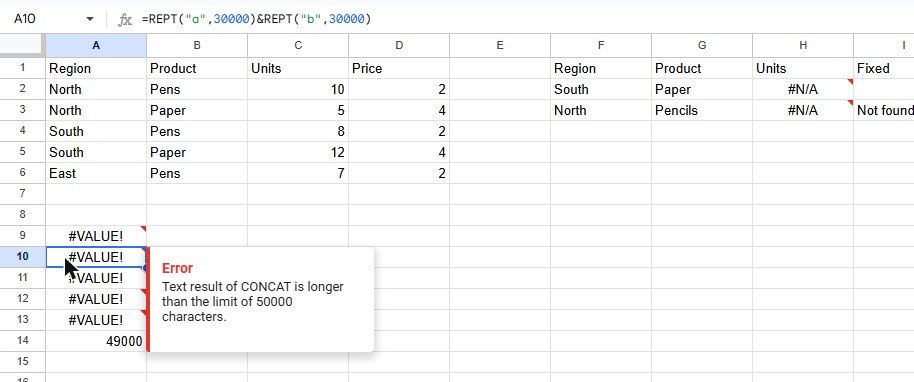
When a formula builds a very long piece of text, Google Sheets stops at a limit and shows #VALUE! with a message like "Text result of CONCATENATE is longer than the limit of 50000 characters." We pushed each text function past its limit to see the exact messages and numbers.
The limits we hit
| Formula | Message |
|---|---|
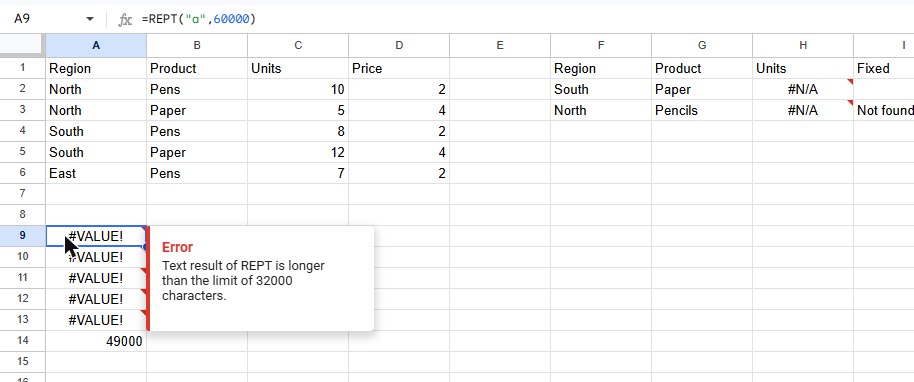
=REPT("a",60000) | Text result of REPT is longer than the limit of 32000 characters. |
=REPT("a",30000)&REPT("b",30000) | Text result of CONCAT is longer than the limit of 50000 characters. |
=CONCATENATE(REPT("a",30000),REPT("b",30000)) | Text result of CONCATENATE is longer than the limit of 50000 characters. |
=TEXTJOIN(",",TRUE,REPT("a",30000),REPT("b",30000)) | Text result of TEXTJOIN is longer than the limit of 50000 characters. |
All of them return #VALUE!. Two details:
- REPT has a lower limit, 32,000 characters. In our test even
=LEN(REPT("a",50000))failed, because REPT broke before LEN could count. - The & operator is reported as CONCAT, so if you see "CONCAT" in the message but never typed it, look for
&in your formula.
Under the limit everything works: =LEN(REPT("a",30000)&REPT("b",19000)) returned 49000.
How to fix it
A single cell with 50,000 characters is rarely what you actually want. Usually one of these is happening:
- The range is bigger than you think.
=TEXTJOIN(", ",TRUE,A:A)on a column with thousands of rows easily goes over. Limit the range, or filter it first:=TEXTJOIN(", ",TRUE,FILTER(A2:A,B2:B="Yes")). - The result belongs in several cells. Instead of one giant text, keep one value per row and join only what you need to show.
- You're building a long text for export (a list of emails, a CSV line). Split it into chunks, for example one TEXTJOIN per 1,000 rows, so each result stays under 50,000 characters.
To check how close you are, wrap the text part in LEN() on a smaller range and scale up.
Frequently asked questions
Is there a limit on text I type into a cell?
These limits are about text produced by formulas. For joining text in general, see how to combine text.
What do other #VALUE! messages mean?
Usually text where a number was expected. See how to fix #VALUE!.