How to Fix the #REF! Error in Google Sheets
#REF! is a reference error: the formula points somewhere it can't use. In Google Sheets it has three common causes, and the tooltip tells you which one you're dealing with.
Cause 1: "Reference does not exist"
This happens when you delete a row, column or sheet that a formula was using. Here the total was =B2+B3+B4; after deleting the Groceries row, the formula still has a hole where that cell used to be:
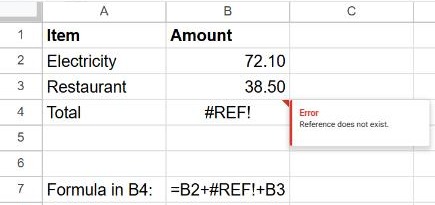
Fix: press Ctrl + Z straight away to bring the row back. If it's too late, edit the formula and remove or replace the #REF! part.
Prevent it: use ranges instead of adding single cells. =SUM(B2:B4) simply shrinks when a row inside it is deleted, and never breaks.
Cause 2: "Array result was not expanded"
Functions like UNIQUE, FILTER, SPLIT, SORT and QUERY fill several cells. If any of those cells already contains something, Sheets refuses to overwrite it:
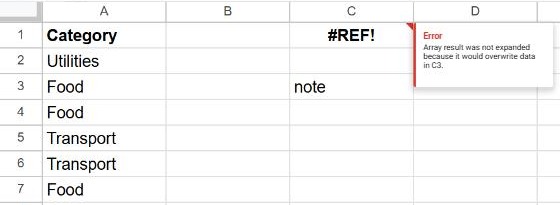
Fix: clear the cell mentioned in the message (here C3, which contains "note"), or move the formula somewhere with enough empty space below and to the right. A cell that looks empty might hold a space; select it and press Delete.
Cause 3: circular dependency
A formula that includes its own cell, such as =SUM(B2:B5) typed in B5, also shows #REF!, with the message "Circular dependency detected". See how to fix a circular dependency.
Other places you'll see #REF!
- IMPORTRANGE shows #REF! until you allow access to the other file. See how to use IMPORTRANGE.
- INDEX or OFFSET asking for a row or column outside the range, for example
=INDEX(A2:A5, 10). - VLOOKUP with a column number larger than the range:
=VLOOKUP(E2, A2:C5, 4, FALSE)on a 3-column range.
Frequently asked questions
Can IFERROR hide #REF!?
Yes, but a #REF! from a deleted cell means the formula is permanently broken. Fix the formula rather than hiding it.
How do I find every #REF! in a sheet?
Use Find and replace, tick Also search within formulas, and search for #REF!. That also finds the broken references inside formulas.