How to Fix "Circular Dependency Detected" in Google Sheets
A circular dependency is a formula that, directly or through other cells, depends on its own result. Sheets can't calculate it, so it shows #REF! with the message "Circular dependency detected".
What the error looks like
The total in B5 is =SUM(B2:B5). The range includes B5 itself, so the total would have to add itself:
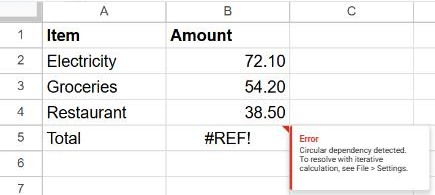
Fix: take the cell out of its own range
Change the range so it stops above the formula:
=SUM(B2:B4)The most common versions of this mistake:
| Formula | Problem | Fix |
|---|---|---|
=SUM(B2:B5) in B5 | The total is inside the range | =SUM(B2:B4) |
=SUM(B:B) anywhere in column B | A whole-column range always includes the formula | Put the total in another column, or use =SUM(B2:B100) |
=C2*2 in B2 and =B2+1 in C2 | Two cells refer to each other | Decide which one holds the real input and type a value there |
Finding a longer loop
When the loop runs through several cells, click the cell with the error and look at its formula. Click each cell it refers to and follow the chain until you get back to the start. The cell where you'd expect a typed value but find a formula is usually the one to change.
When a circular reference is intentional: iterative calculation
Some models are circular on purpose, for example interest that depends on a balance that includes the interest. For those, go to File → Settings → Calculation, turn on Iterative calculation, and set the maximum number of iterations and the threshold. Sheets then repeats the calculation until the result settles.
Only use this on purpose. With iterative calculation on, accidental circular formulas stop showing an error and quietly give wrong numbers.
Frequently asked questions
Why does it say #REF! and not something clearer?
Google Sheets groups circular references with other reference errors. Hover over the cell to see the real reason. Other causes of #REF! are covered in how to fix #REF!.
Where should I put column totals?
Below the data with a fixed range (=SUM(B2:B4)), or in a separate column or row with an open-ended range (=SUM(B2:B)). See how to sum a column.