How to Add a Hyperlink in Google Sheets
Links in a spreadsheet turn a plain list into something you can click: product pages, invoices in Drive, or a jump to another tab. There are two ways to add them.
Method 1: Insert link (Ctrl + K)
- Select a cell and press Ctrl + K (⌘ + K on Mac), or go to Insert → Link.
- Type the text to display and paste the web address.
- Press Enter.
In the same box you can choose Sheets and named ranges to link to another tab, or Select a range of cells to link to jump to a specific area.
Method 2: the HYPERLINK function
=HYPERLINK("https://sheetshowto.com", "Open the site")The first part is the address, in quotes; the second is the text shown in the cell.
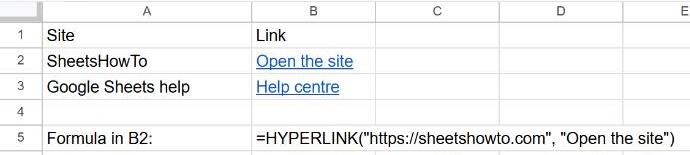
Build links from cell values
HYPERLINK can combine text and cells, which is great for lists of IDs:
=HYPERLINK("https://example.com/orders/" & A2, "Order " & A2)Fill it down and each row links to its own page. See how to combine text.
Remove links
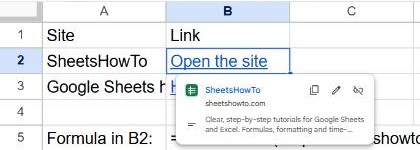
- One link: click the cell and choose the Remove link icon in the preview card.
- Many links: select the cells, right-click and choose Remove link (in newer versions it's under View more cell actions).
- HYPERLINK formulas: copy the cells and paste them as values only to keep just the text.
Frequently asked questions
Why isn't my link clickable?
Sheets only recognizes addresses that start with http://, https:// or www.. Add the prefix.
Can I link to an email address?
Yes: =HYPERLINK("mailto:[email protected]", "Email us").