Fix "Array result was not expanded because it would overwrite data"
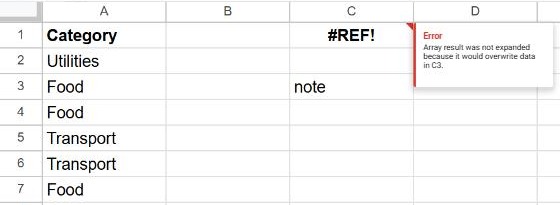
You type a formula like UNIQUE, FILTER, SORT or ARRAYFORMULA, and instead of a list you get #REF!. When you hover over the cell, Google Sheets says:
Error Array result was not expanded because it would overwrite data in C3.
Why it happens
Some formulas return more than one value. Their results "spill" from the formula cell into the cells below it (and to the right, if there are several columns). Google Sheets never overwrites your data to make room, so if any cell in that area already contains something, the whole formula shows #REF! instead.
The message always names the cell that's in the way. In the example, =UNIQUE(A1:A7) in C1 needs four cells (C1:C4) for Category, Utilities, Food, Transport, and C3 holds the word "note".
It happens with every function that returns a range: UNIQUE, FILTER, SORT, QUERY, SPLIT, TRANSPOSE, IMPORTRANGE and ARRAYFORMULA.
Fix 1: clear the cell named in the message
- Hover over the
#REF!cell and read which cell is in the way (here, C3). - Click that cell and press Delete. If you need what's in it, cut it (Ctrl+X) and paste it somewhere outside the result area.
- The formula spills straight away. If you get the error again, it now names the next cell that's in the way. Repeat until it's gone.
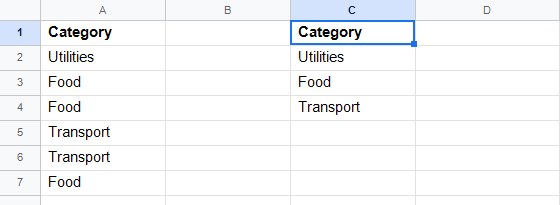
Faster when there's a lot in the way: select the whole area the result needs, except the formula cell, and press Delete once.
Fix 2: the cell looks empty but isn't
Sometimes the message names a cell that seems blank. Something invisible is still in it:
- A space or an apostrophe. Click the cell and look at the formula bar.
- A formula that returns an empty text, such as
=IF(B5>0, B5, ""). It shows nothing, but a formula is data, so it blocks the result. - White text on a white background, or a number format that hides the value.
- Hidden or filtered rows. Data in a hidden row or column still counts. Unhide everything, or remove the filter, and check again.
In every case, selecting the cell (or the whole area) and pressing Delete fixes it.
Fix 3: ARRAYFORMULA down a whole column
This is the most common case. You had a formula copied down column D, then replaced it with one ARRAYFORMULA in D2:
=ARRAYFORMULA(IF(A2:A="", "", B2:B*C2:C))The old formulas are still in D3, D4, D5… and they're in the way. Fix it like this:
- Click D3.
- Press Ctrl+Shift+↓ to select down to the last filled cell.
- Press Delete. The ARRAYFORMULA in D2 now fills the column.
Remember that an open range like A2:A reaches the last row of the sheet. With IF(A2:A="", "", …) the empty rows still belong to the result, so you can't type anything further down that column. Put notes or totals in another column, or in a row above the data.
Fix 4: move the formula
If the cells in the way must stay where they are, put the formula somewhere with enough empty space: a free column on the right, or a new sheet. The formula can still read the original data, for example =UNIQUE(Sheet1!A2:A).
If you only need part of the result, make it smaller instead. =ARRAY_CONSTRAIN(UNIQUE(A2:A), 5, 1) returns at most 5 rows and 1 column, so it only needs 5 free cells.
"Result was not automatically expanded, please insert more rows"
A similar #REF! message appears when the result is taller than the sheet itself:
Error Result was not automatically expanded, please insert more rows (12).
Nothing is in the way: the sheet simply runs out of rows. Scroll to the bottom of the sheet, type the number from the message (or more) in the box next to Add, and click Add. With columns, the message asks for more columns instead: right-click the last column header and choose Insert 1 column right as many times as needed.
Frequently asked questions
Is this the same as #SPILL! in Excel?
Yes. Excel shows #SPILL! for exactly the same problem, a dynamic array formula with something in its way. The fix is the same: clear the cells the result needs. See an example in XLOOKUP in Excel.
Why does the error come back after I clear the cell?
The message only names the first cell that's in the way. If there are more, Google Sheets names the next one. Clear the whole result area at once to avoid going cell by cell.
Can I make the formula overwrite the data?
No. Google Sheets never overwrites cells to make room for a result. You have to clear them or move the formula.
What other causes does #REF! have?
A deleted cell or sheet ("Reference does not exist") and circular references also show #REF!. See how to fix the #REF! error for all of them.