How to Calculate Percentage Change in Google Sheets
Percentage change tells you how much a value grew or shrank compared with before: sales this month versus last month, a price now versus a year ago. The formula is always the same.
The formula
=(new - old) / oldWith last month's sales in B2 and this month's in B3:
=(B3-B2)/B2The result is a decimal, like 0.125. Select the cells and click the % button on the toolbar (or Format → Number → Percent) to show it as 12.50%.
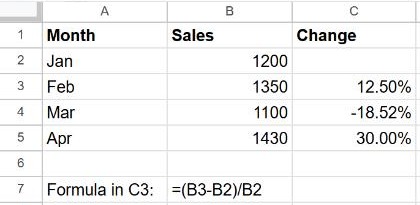
Type the formula in C3 and drag it down: each row compares that month with the month above.
Other common versions
| You want… | Formula |
|---|---|
| Change compared with a fixed starting value in B2 | =(B3-$B$2)/$B$2 |
| The new value after a 15% increase | =B2*(1+15%) |
| The new value after a 15% discount | =B2*(1-15%) |
| Built-in function (same result) | =TO_PERCENT((B3-B2)/B2) |
Avoid #DIV/0! when the old value is 0
Growth from zero can't be expressed as a percentage, so the formula returns #DIV/0!. Show a blank instead:
=IF(B2=0, "", (B3-B2)/B2)More in how to fix #DIV/0!.
Color increases green and decreases red
Select the results and add two conditional formatting rules: Greater than 0 with green text and Less than 0 with red text.
Frequently asked questions
Why does my result show 1250% instead of 12.5%?
You probably multiplied by 100 and then applied the % format, which multiplies again. Use either *100 or the % format, not both.
What's the difference between percentage change and percentage of a total?
Percentage change compares two values over time. Percentage of a total shows one part's share, like =B2/SUM(B2:B10). See how to calculate percentages.