How to Remove Extra Spaces in Google Sheets (TRIM)
Extra spaces are invisible, but they cause real problems: VLOOKUP can't find "Anna Smith " (with a space at the end), duplicates aren't detected, and sorting puts names in odd places. Google Sheets has two quick fixes.
Method 1: the Trim whitespace tool
- Select the cells you want to clean.
- Go to Data → Data cleanup → Trim whitespace (Data clean-up in UK English).
Sheets removes spaces at the start and end of each cell and reduces double spaces between words to one. The cells are changed in place, so there's no extra column to deal with.
Method 2: the TRIM function
To keep the original and get a cleaned copy, use:
=TRIM(A2)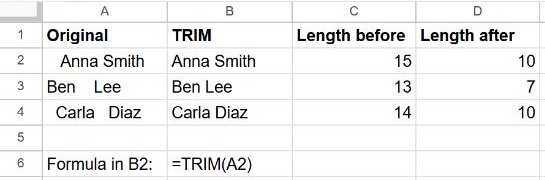
TRIM removes spaces before and after the text and turns runs of spaces between words into a single space. To replace the original, copy the TRIM column and use Edit → Paste special → Values only over it.
Check for hidden spaces with LEN
=LEN(A2) counts every character, including spaces. If a cell that looks like "Ben Lee" returns more than 7, it has extra spaces.
Spaces TRIM can't remove
Text copied from websites often contains non-breaking spaces, which look identical but aren't removed by TRIM. Replace them first:
=TRIM(SUBSTITUTE(A2, CHAR(160), " "))To remove all spaces, for example from phone numbers, use =SUBSTITUTE(A2, " ", "") or Find and replace.
Frequently asked questions
Why does my lookup still fail after trimming?
The lookup value itself may have spaces too. Trim both sides: =VLOOKUP(TRIM(E2), A2:C20, 3, FALSE). See how to fix #N/A.
Can I trim a whole column with one formula?
Yes: =ARRAYFORMULA(TRIM(A2:A)). More in how to use ARRAYFORMULA.