Google Sheets Shows the Formula Instead of the Result: How to Fix It
You type =SUM(C2:C4), press Enter, and the cell shows =SUM(C2:C4) instead of the total. In Google Sheets there are only a few reasons for this, and we tested each one. One popular "fix" from Excel guides, the cell format, turned out not to be the cause in Sheets.
1. Show formulas is on (every formula shows)
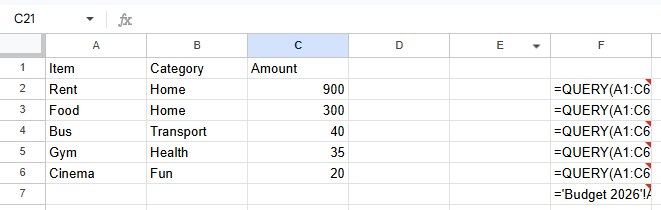
If all your formulas suddenly show as text, the Show formulas view is on. It's easy to switch on by accident with the shortcut Ctrl+` (the key left of 1).
Fix: go to View → Show → Formulas to turn it off, or press Ctrl+` again.
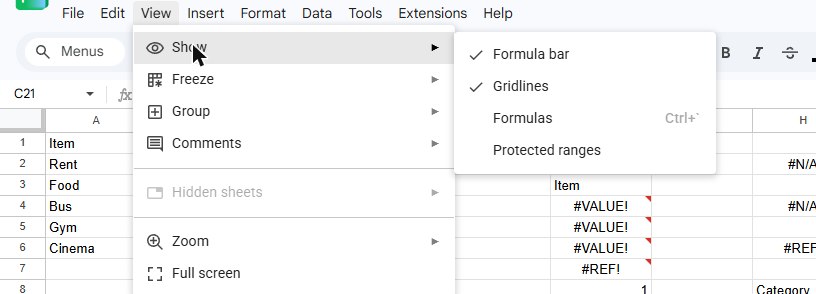
This only changes what you see: your data and results are untouched.
2. A space or apostrophe before the =
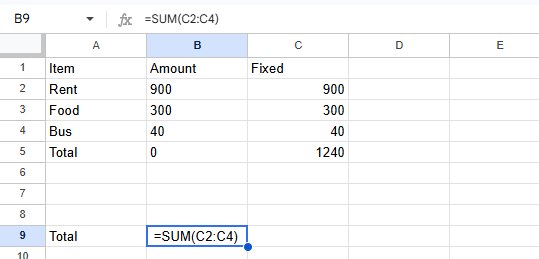
If only one cell shows its formula, check its first character. A formula must start with =. If it starts with a space, Sheets treats the whole entry as text. An apostrophe ('=SUM(...)) does the same on purpose: it's how you write a formula as a label.
Fix: click the cell, delete everything before the = in the formula bar, and press Enter. A leading space is hard to see in the formula bar, so the quickest fix is often to retype the formula.
Copying formulas from websites, chats or PDFs can add a space or invisible characters at the start. Paste them into the formula bar and check the beginning.
What is not the cause: Plain text format
Many guides say a cell formatted as text shows formulas as text. That's true in Excel, but not in Google Sheets: in our test, a formula typed into a cell set to Format → Number → Plain text still calculated.
The Plain text format does cause a different problem: numbers typed into those cells are stored as text, so a SUM of them returns 0. See SUM not working.
Frequently asked questions
How do I show a formula as text on purpose?
Start it with an apostrophe: '=SUM(A1:A5). The apostrophe doesn't appear in the cell. Or use =FORMULATEXT(B9) to display another cell's formula.
Can I print with formulas visible?
Yes: turn on View → Show → Formulas before printing. See how to print a Google Sheet.