How to Use XLOOKUP in Google Sheets (with Examples)
XLOOKUP is the modern replacement for VLOOKUP. You tell it where to search and where to return from as two separate ranges, so the result column can be to the left or right, and there's a built-in option for values that aren't found.
The syntax
=XLOOKUP(search_key, lookup_range, result_range, [missing_value])- search_key: what you're looking for, e.g. a product ID.
- lookup_range: the single column to search in.
- result_range: the column to return a value from (same size as lookup_range).
- missing_value (optional): what to show if nothing is found.
Example
A Products tab lists IDs in column A, names in B and prices in C. To get the name for the ID in A2:
=XLOOKUP(A2, Products!A2:A5, Products!B2:B5, "Not found")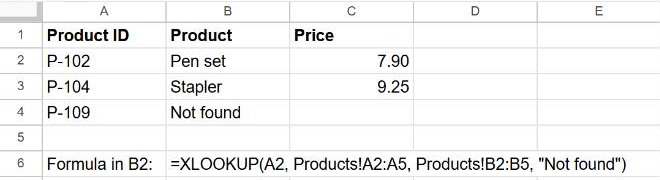
The price column uses the same formula with Products!C2:C5 as the result range.
XLOOKUP vs VLOOKUP
| VLOOKUP | XLOOKUP | |
|---|---|---|
| Result column | Only to the right, by number | Anywhere, as a range |
| Default match | Needs FALSE for exact | Exact by default |
| Not found | #N/A (wrap in IFNA) | Built-in missing_value |
| Breaks if columns are inserted | Yes (column number shifts) | No |
For older files or colleagues used to it, see VLOOKUP. INDEX and MATCH is the classic flexible alternative.
Useful variations
| You want… | Formula |
|---|---|
| Return several columns at once | =XLOOKUP(A2, Products!A2:A5, Products!B2:C5) |
| Search from the bottom (last match) | =XLOOKUP(A2, A2:A100, C2:C100, , 0, -1) |
| Next smaller value (e.g. tax bands) | =XLOOKUP(B2, E2:E6, F2:F6, , -1) |
Frequently asked questions
Why do I get #VALUE!?
The lookup range and result range have different sizes. Make them cover the same rows.
Is XLOOKUP available in every Google Sheets account?
Yes, it's a standard function in Google Sheets. It also exists in newer versions of Excel; see XLOOKUP in Excel.