Free Timesheet Template for Google Sheets (Hours and Overtime)
Track your working hours without doing any maths. Type when you started, when you finished and how long your break was; this free timesheet works out the hours for each day, the weekly total, overtime and pay.
The copy is saved to your own Google Drive. You need to be signed in to a Google account.
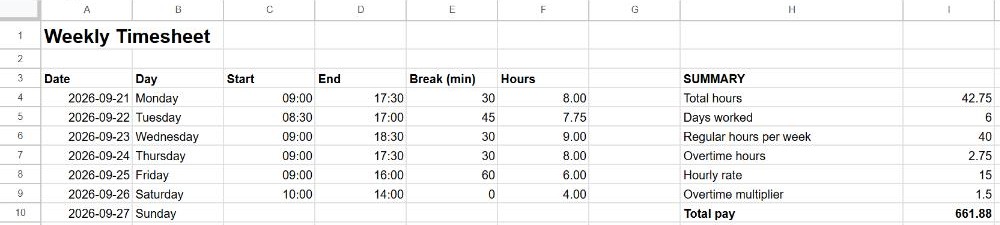
What's included
- Daily log: date, day name (filled in automatically), start, end and break in minutes.
- Hours per day as a decimal number, ready to add up.
- Night shifts: a shift from 22:00 to 06:00 counts as 8 hours, not −16.
- Summary: total hours, days worked, overtime above your weekly limit, and total pay with an overtime multiplier.
How to use it
- Make a copy with the button above.
- In the summary, set your regular hours per week, hourly rate and overtime multiplier (1.5 means time and a half).
- Replace the example dates and times with your own. Type times like
9:00or17:30. - Leave days off blank: they don't count as days worked.
There's room for 27 entries, enough for a week with several shifts a day. For a new week, duplicate the tab and clear A4:E30.
The formulas inside
| Cell | Formula | What it does |
|---|---|---|
| Day | =IF(A4="", "", TEXT(A4, "dddd")) | Shows the weekday name of the date. |
| Hours | =IF(OR(C4="", D4=""), "", ROUND((D4-C4+(D4<C4))*24 - N(E4)/60, 2)) | End minus start, converted to hours, minus the break. (D4<C4) adds a day when the shift ends after midnight. See ROUND. |
| Total hours | =SUM(F4:F) | Adds every day. See summing a column. |
| Days worked | =COUNT(F4:F) | Counts the days with hours. |
| Overtime hours | =MAX(0, I4-I6) | Hours above the weekly limit, never negative. |
| Total pay | =MIN(I4, I6)*I8 + I7*I8*I9 | Regular hours at the normal rate plus overtime at the higher rate. |
Why multiply by 24?
Google Sheets stores times as fractions of a day: 12:00 is 0.5. Subtracting two times gives a fraction of a day, so multiplying by 24 turns it into hours. That's why 17:30 − 9:00 becomes 8.5.
Customise it
- Show pay in your currency: select the Total pay cell and choose Format → Number → Currency.
- Daily overtime instead of weekly: add a column with
=MAX(0, F4-8)to count the hours above 8 each day. - Monthly timesheet: copy the formulas in B and F further down and log the whole month on one tab.
Frequently asked questions
The Hours column shows a time like 08:00 instead of 8. Why?
The cell has a time format. Select the column and choose Format → Number → Number.
My times aren't calculated. What's wrong?
They may be stored as text, for example if you typed 9.00 or 9h. Use a colon: 9:00. See converting text to numbers if you pasted times from another program.
Can I share it with my manager?
Yes. Click Share in your copy and add their email as a viewer or editor. See how to share a Google Sheet.