How to Fix the #NAME? Error in Google Sheets
#NAME? appears when a formula contains a word that Google Sheets doesn't recognize. It's almost always a typing mistake, and the tooltip tells you which word is the problem.
What the error looks like
The total should be =SUM(B2:B4), but it was typed as =SUMM(B2:B4):
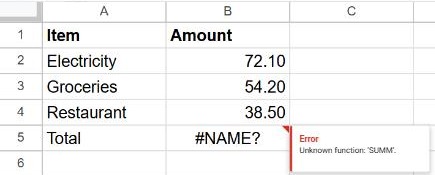
The four usual causes
1. A misspelled function
SUMM, VLOKUP, COUNTIFS written as COUNTIF S… Correct the spelling. To avoid it, type = and the first letters, then pick the function from the suggestion list with Tab.
2. Text without quotation marks
Text inside a formula must be in double quotes. =IF(A2=Food, 1, 0) gives #NAME? because Sheets thinks Food is the name of a range. Write it as:
=IF(A2="Food", 1, 0)Curly quotes (“ ”) copied from a website or a document cause the same error. Retype them in Sheets.
3. A named range that doesn't exist
If the formula uses a named range such as =SUM(Sales), check Data → Named ranges. The name may have been deleted, renamed or misspelled.
4. A range missing its colon
=SUM(B2B4) reads as a name, not a range. Add the colon: =SUM(B2:B4).
Frequently asked questions
Can I hide #NAME? with IFERROR?
You can, but you shouldn't. #NAME? always means the formula is written wrong, so hiding it just hides a bug.
Why does a formula from Excel give #NAME? in Sheets?
A few functions exist in only one of the two programs. Check the Google Sheets function list (Help → Function list) for an equivalent.